As our knitting experience grows, there are likely to be some techniques that engage us and others we choose to avoid completely if possible. Cables are in the latter category for me. I have hand-knit complicated pieces using them but dislike knitting them on the machine immensely. That said, I am periodically drawn to revisiting the topic in my blog, the resulting swatches are as proof of concept.
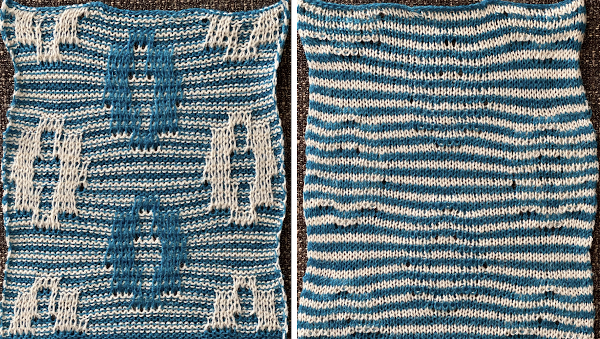
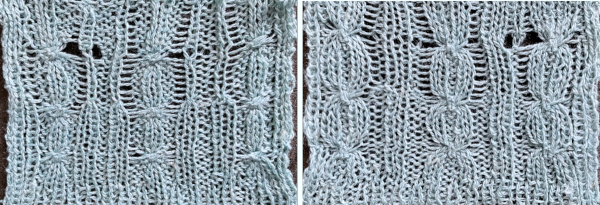
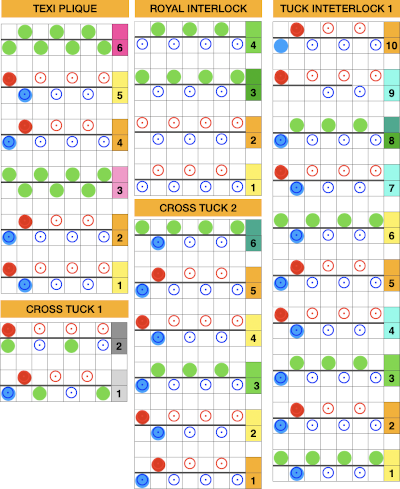
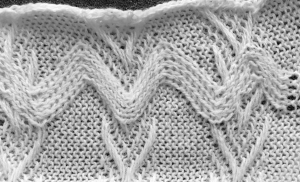
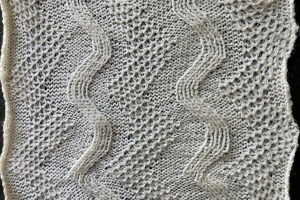
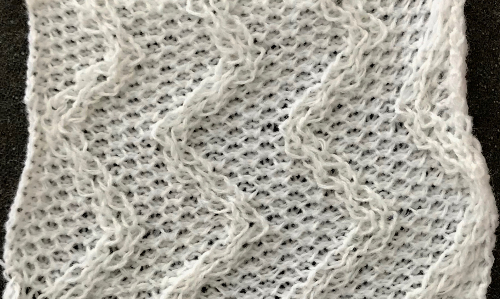
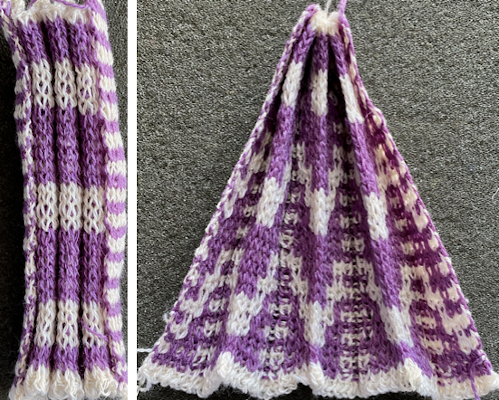
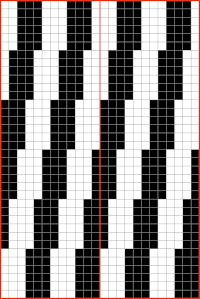
Small crossings may be used in sequence to create more complex cables, and charts illustrating them may be simplified, using little or even no added color. 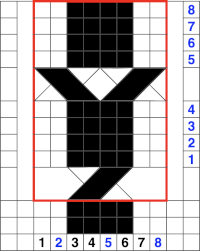 The repeat is 8X8 and the above movement can be seen in the purl view.
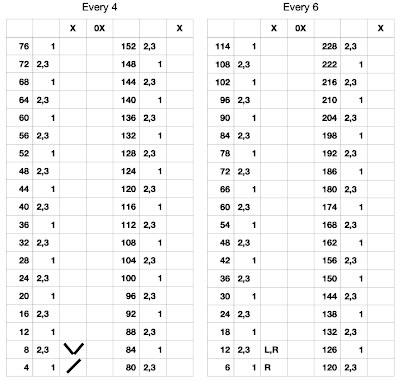
Ladders and knit columns between vertical sets of cables make the process easier to track, one needs to be alert to accidentally bringing the ladder back into work resulting in knit stitches, seen in the bottom left of the knit side swatch. 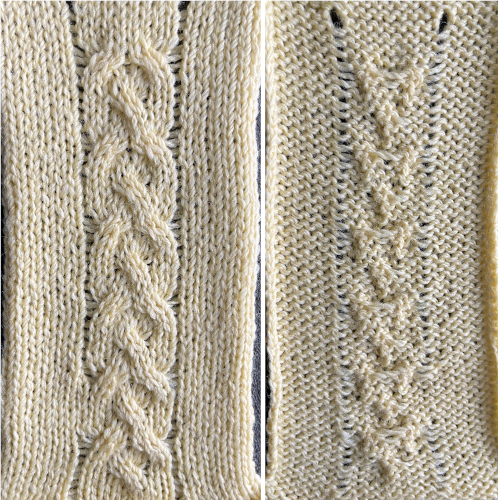 A spreadsheet table may be created to help with tracking multiple series of cables across a knit and their direction. It can contain as little or as much information as one wishes. Included here: the RC for possible crossings, and their direction on the purl side for machine knitting (reversed for hand knitting). Columns may be added including how many needles are left in or out of work between cable knit spaces or other info.
  It is also possible to print a custom needle tape to place underneath the involved groups of needles instead of marking the needle tape or the knit beds. On a standard km, the needles are 4.5mm apart. A conversion reference for needle spacing point values
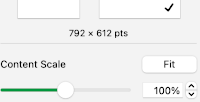
 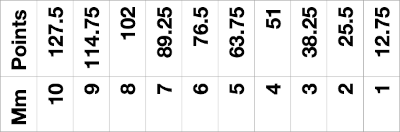 Four needles X 12.75 =51 points, the width of the table cells, which in this instance are all equal in size. Colors and any other info may be added within each cell. Print in landscape orientation, making certain the image is not set to fit the page, but at 100%.
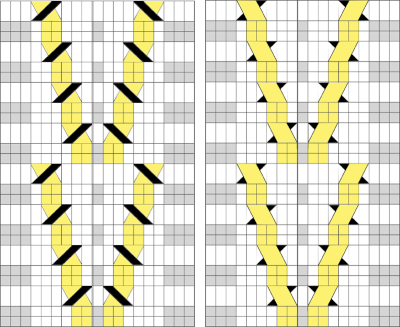
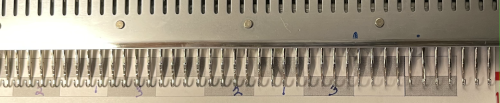 A narrower series of twists are made after every 2 rows knit, the chart shows crossings on the purl side on the left, as opposed as to how they would appear on the knit side on the right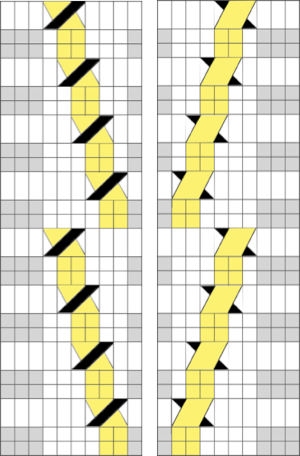
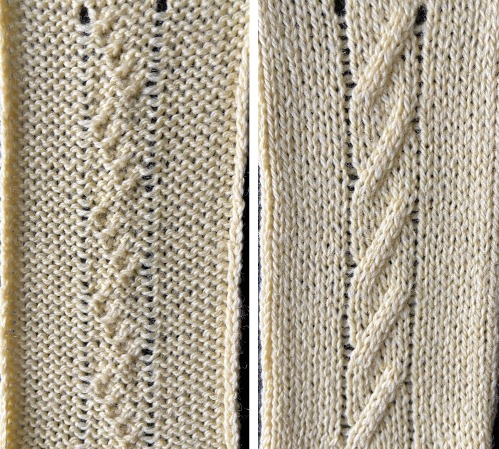 Which leads to the topic of creating shapes by combining the repeats
  A brief effort containing at least 5 errors leads me to wonder about programming needle selection to help track crossings more easily and avoid mistakes. The center ladder here was latched up during knitting.
  Adding the ribber: the simplest knits using the ribber are made with transfers to the ribber of single or multiple stitches to create what is sometimes called trailing stitches, with cables occurring at determined distances and appearing as knit stitches on a purl ground. Some samples of elongated ribber stitches with crossings on a striped ground may be found in the post on Slip stitch patterns with hand transferred stitches, double bed, the technique may be executed in a single color, or as shown here with color changes every 2 rows.
 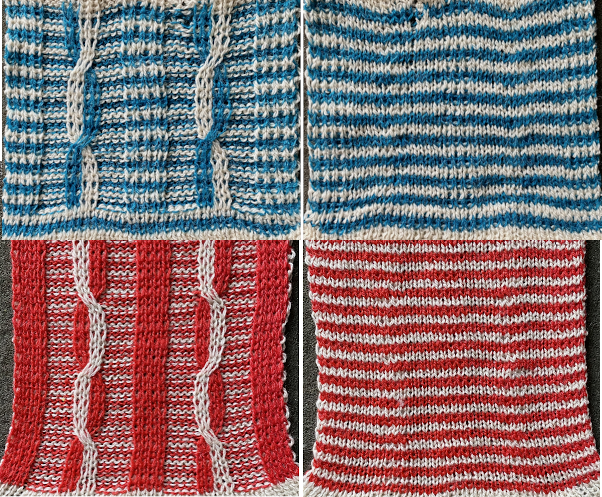 If only the knit stitches or purl stitches are crossed on one the same bed when knitting ribs, they will appear so on one side only. One example
 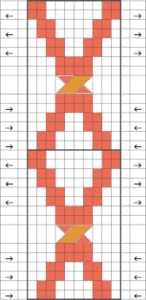 If the start is on the top bed, stitches on the ribber may be created by picking up bars from the top bed
 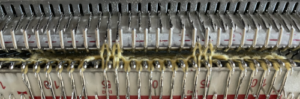 the yarn above was a 2/8 wool, which refused to cable on the ribber, and having the crossing was preferred to not
 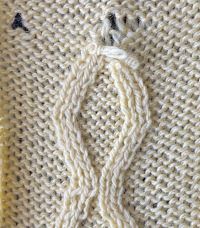 changing to a thinner wool-silk solved the problem.
  Using a punchcard or electronic program to track movements and cabling on the knit bed, each stitch in each pair of punched holes or pixels is crossed over or under the other. This is a very time-consuming fabric, not friendly to distractions or interruptions. Any crossing mistakes in the swatch were due to “operator error”.
 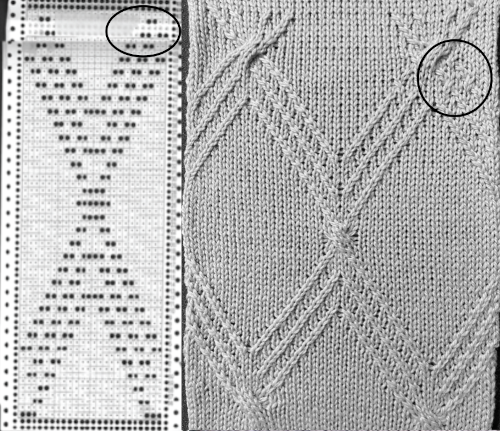 In reviewing the post after linking to it here I realized the now marked punchcard error at its top. The amended longer chart reworked in Numbers is also added to the older post. It is shown here aside from its tiled chart, checking for alignment, a habit developed as my skill and comfort in using spreadsheets grew,
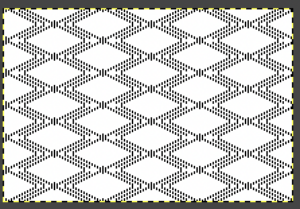
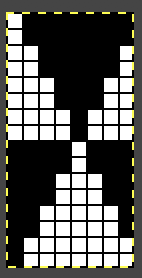
  A png of the repeat, 24 stitches wide by 72 rows
  Tiled for alignment in Gimp as well.
 It is possible to use the repeat working 1 X 2 stitch crossings for a very different look.
A large swatch is worth doing before committing to a large piece.
Correcting crossing errors (purple arrows) after the fact will be harder than doing so in some other instances or in a bulkier knit.
Keeping the fabric visible as opposed to between the beds begins to show a pattern on the reverse, which can also guide the direction of movements.
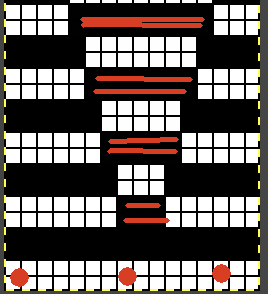
There are spots in this repeat where the center larger cables are not possible because of cables in opposite directions already occurring on either side of the group of selected needles (red arrows).
Transfers occur by bringing single needles forward and crossing pairs of stitches behind them, moving away from the center of the triangular half of the diamond as it is formed. The sequence is retained until after the wider cabled segments occur (black arrow and line), where there is no other needle selection aside from stitches to be crossed.
The number of plain knit stitches between crossings is always even.
The cabled knit areas have a depth that makes them project out and appear almost beaded in texture. 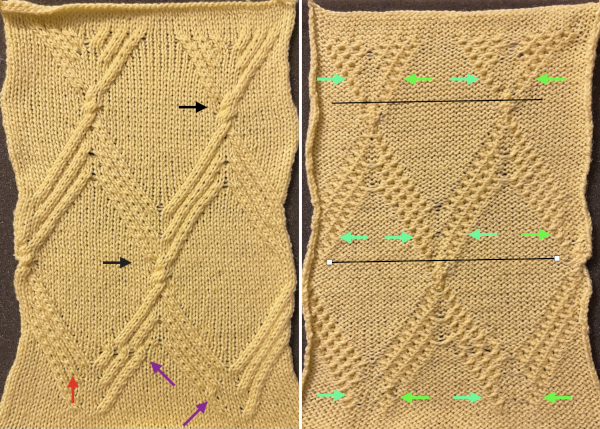 Assigning colors to crossings in a chart may be helpful or too much info depending on one’s perspective, the bottom of the repeat is on the right.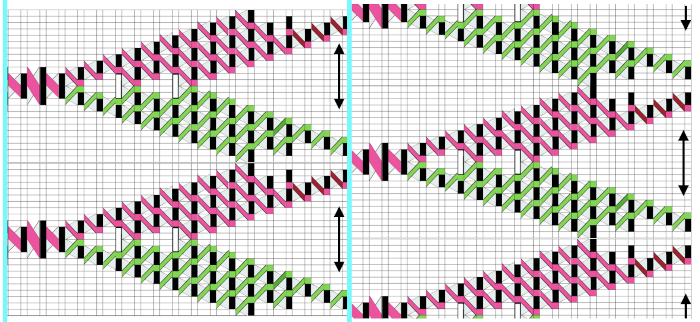
Periodically, the topic of reversible cables turns up in discussions for both hand and machine knitting. They are possible when working in ribbing on the knitting machine.
Keep in mind that ribs narrow when off the machine, cables do as well, so a looser tension is generally required, and the basic fact that knit stitches are purl stitches on the other side and vice versa.
Cable crossings are made over purl stitches that separate them or the reverse. Changing rib needle arrangements will result in fabrics that may not always “match”, appearing different on one side from the other.
Using the half-pitch position before any transfer rows brings needles closer together, G carriages may be a boon but may have a hard time knitting the row immediately following the cable crossings and even jam.
On the machines, a 3X3 crossing is likely to be the limit. A general starting guide when trying out repeats is to knit the same number of rows between crossings as there are stitches in the cross, so 6 rows knit before a 3X3 cable.
A published illustration of bringing the ribber into play. 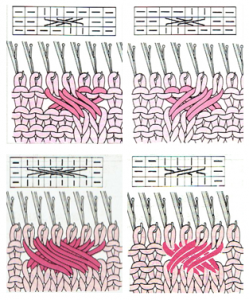 Creating extra slack if possible on the row before stitches are moved is helpful here as well as when working on the single bed.
Stitches may be crossed on either or both beds. If trying that out, crossing on one bed, knitting a row, then crossing on the other is another thing to try. As with any ribber fabric, the view of results is limited, dropped stitches may be easily missed.
A straightforward idea to test: in a wide vertical rib make cables on both beds, testing whether it is necessary to reverse the direction of the crosses or not, the number of rows to knit plain, etc. The chart shows a staggered arrangement. The number of rows between crossings can be changed to suit. 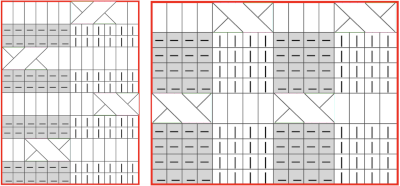 In my first test crossings occur on both beds and on the same row. Even using the thinner blue yarn at maximum tension the transfers were hard to execute. I had more success when I added 2 empty needles between the vertical ribs and brought one on each side of each rib into work on the top bed prior to knitting the last row between transfers, creating a bit of extra yarn to ease the crossings.
After the row is knit the same needles are pushed back to A position, dropping the yarn, and crossings are made before continuing to knit.
Results vary depending on the yarn, tension, machine model, and operator patience. The arrows mark the location of what appears to be a damaged needle, the tuck stitches were not deliberately planned.  Here the repeats are staggered, the edge with the ladder close to the end stitch is shown again to be far less stable than the one with more knit stitches. Spacing is varied, exploring the tolerance for the yarn to be crossed. The setup while working:
 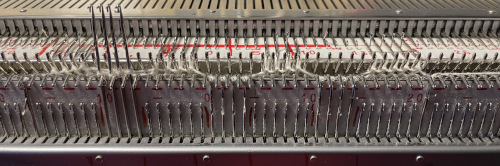 If transfers are made after every 5 rows knit, crossings on multiples of 10 could be assigned to one bed, while row counts containing the number 5 could be made in the other. Sporadically pairs of transfers on the same bed may provide more surface interest.
The set up after transfers to top bed prior to binding off 
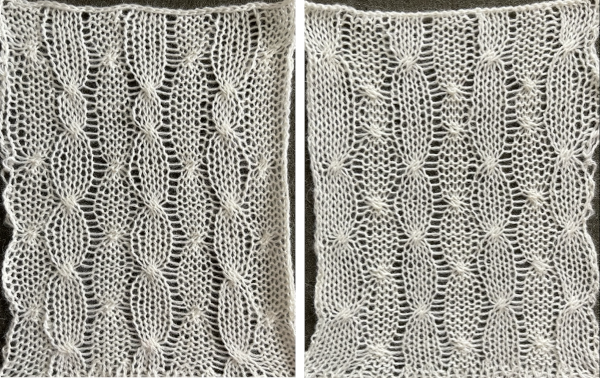 Trying out a simple repeat in smaller rib configurations will provide some idea as to whether the technique falls into the love of or not something to do simply because one can.
Charting can happen using the same method as in illustrating crossings in color, with some alterations, sometimes less information is more or enough.
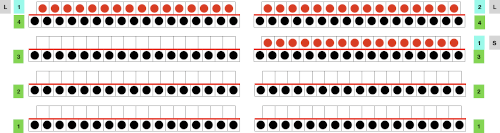
The first repeats were knit with most stitches on the main bed, and a 2 stitch ladder on either side of the ribs involved in cabling to help visually with keeping the stitch location constant. The grey, purl cell blocks are as viewed from the back, the white cells represent stitches on the ribber. 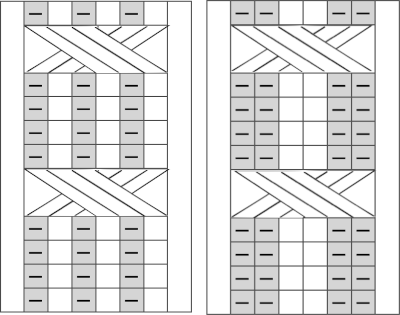 A: the set up single bed, with needles out of work on each side of the planned cable space, tension is tested and 3X3 crossings every 6 rows are made first only on the single bed
B. the ribber needle configuration is set up
C. the cables are made after transferring ribber stitches up to the top bed, and then the same stitches are returned down to the ribber before continuing to knit
D. the ribber stitches are transferred up to the top bed, and the swatch was bound off. Note the difference in width in areas where no crossings are made.
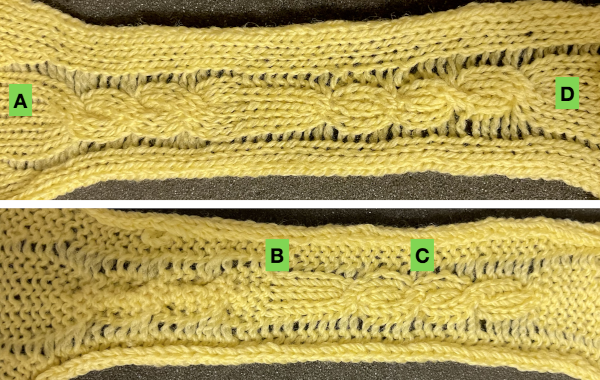 The step-by-step instructions apply to both instances: the chart shows 4 rows knit between crossings, instead, here 6 rows are knit in both tests.
The photos documenting the 2X2 rib: the single bed starting point
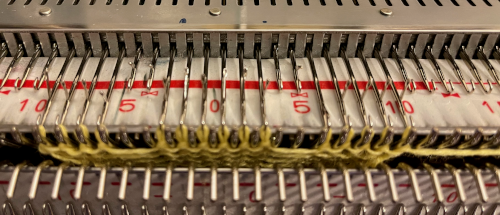 the rib configuration set up
 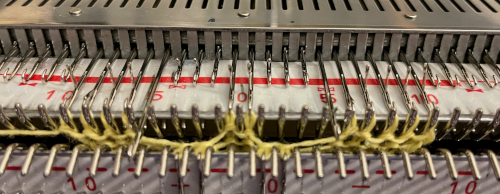 1. after 5 rows knit, bring an extra needle in work on the top bed to pick up extra yarn for the cross
 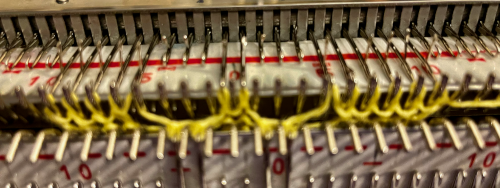 2. drop the extra loop, make certain the empty needle returns to A position
 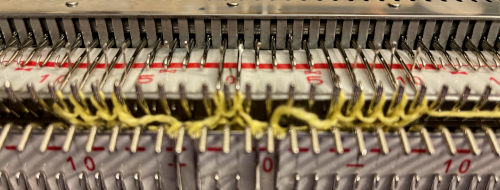 3. transfer all cable ribber needles to top bed
 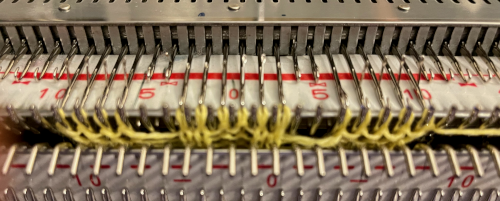 4. cross the stitches with two three-prong tools
 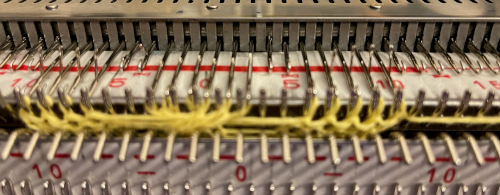 5. transfer stitches back down to the ribber
 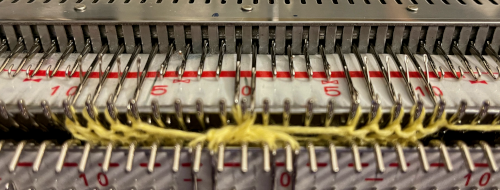 knit 5 rows, repeat steps 1 to 5.
The appearance of each side of the fabric differs
A: the knit was begun on the single bed
B: the ribber configuration was set up
C: cable crossings were made as shown above
D: stitches were transferred to the top bed and bound off 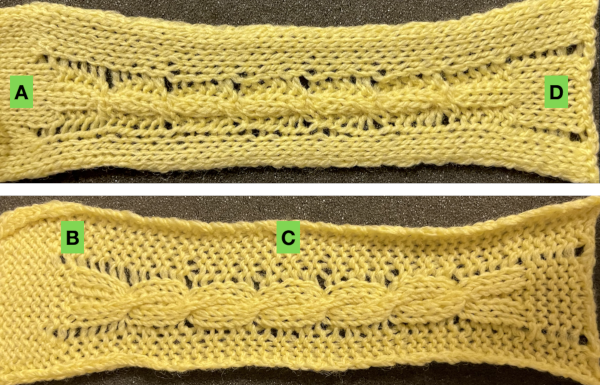 An attempt at a larger swatch using 1X1 ribs:
the intended concept, 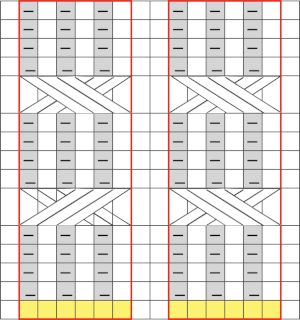 a custom needle tape
  rib set up for the yellow yarn
  the cable crossings using it were impossible, starting over with a thinner yarn at the same tension
 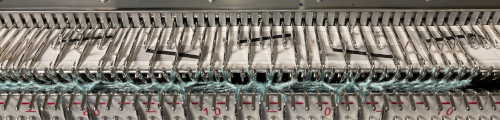 the ribber may be dropped after transfers up to the main bed, keeping stitches and crossings visible, making it possible to make corrections in any cables if they are needed before re-engaging the ribber and transferring stitches back down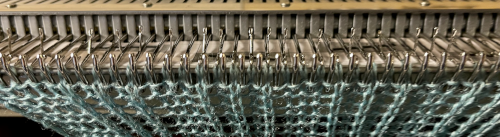
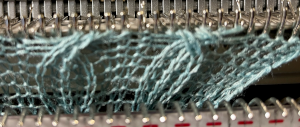 The concept is an interesting one and many arrangements based on the idea are possible.
 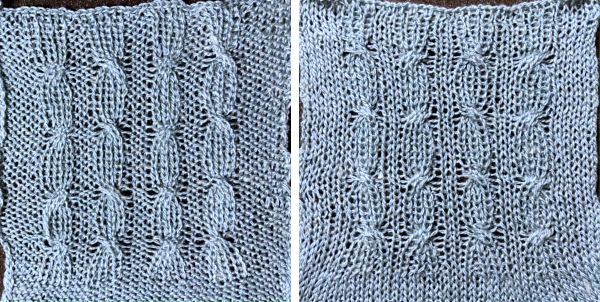 In the above swatches, when any transfers were made to the top bed, after crossings, a row was knit before returning stitches to the ribber. The extra row may or may not be noticeable, depending on the yarn and colors used.
More variants, analyzing columns in color using a crossing over single center stitch first and eliminating the extra knit row, and transferring stitches back down to the ribber immediately after making the cables. The rib will have a tendency to spring back when relaxed and off the machine, so the texture may be hard to see. Using a fiber that allows for some spreading out with some blocking helps to make the work more visible. A reference chart can be developed ahead of time for repeat variations.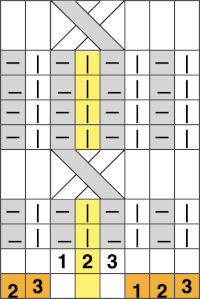
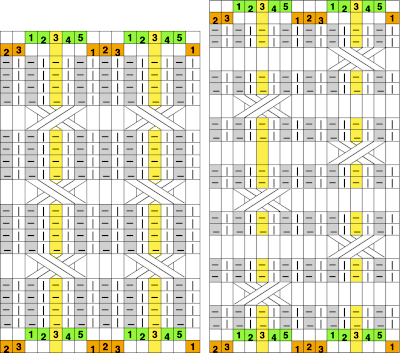 The number of rows between crossings can vary. When the crossing row is reached:
A: stitches are moved up from the ribber to the main bed
B: cable crossings are made
C: stitches that had been moved up are returned back to the ribber, keeping the original ribber needle configuration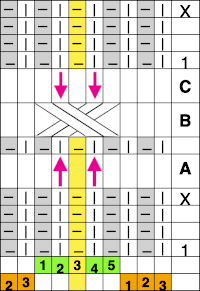
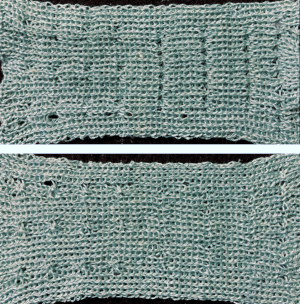
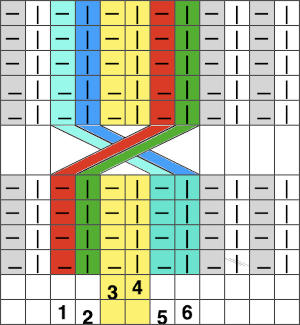
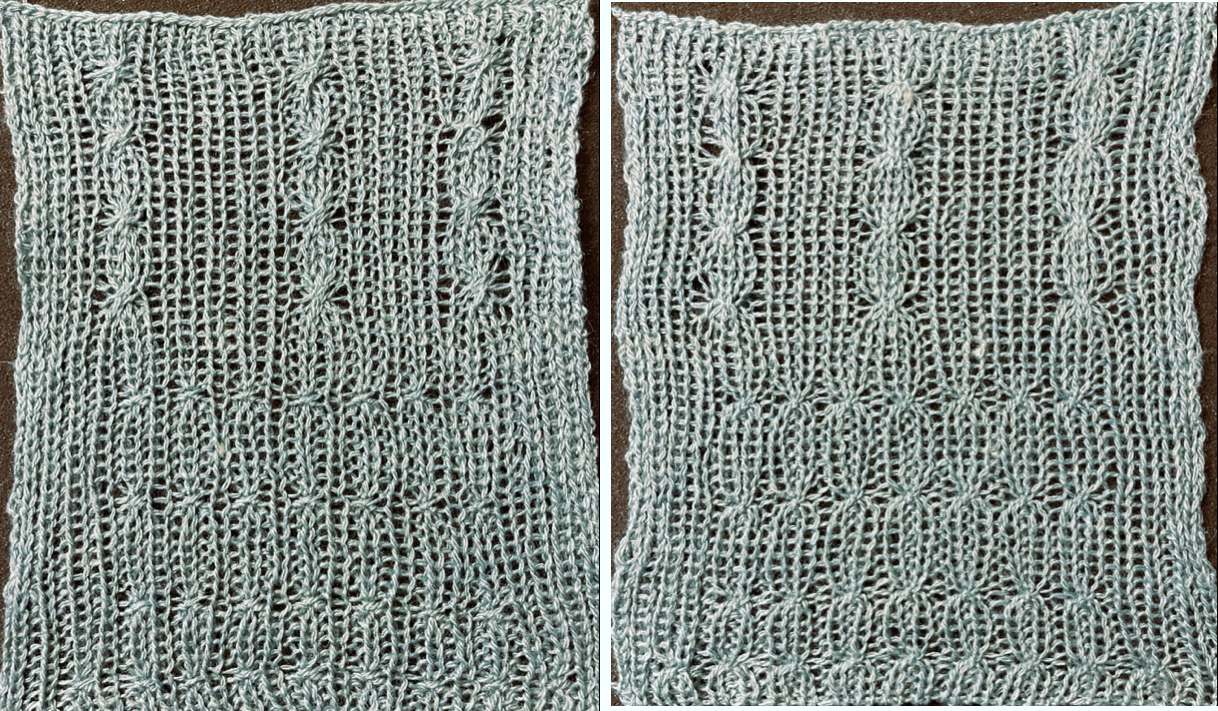 Assigning colors to columns reveals that stitches are not moved onto the same stitch type when moved over a single, undisturbed, fixed center stitch.
 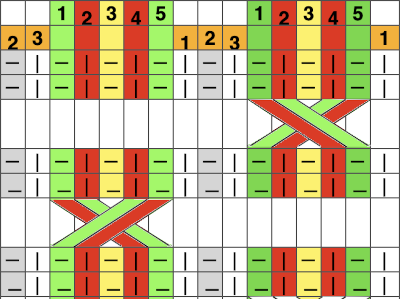 Shifting the needle arrangements when cabling, moving across a center column of two stitches that remain fixed on the main bed, the cable direction as it would appear on the purl side on the left, the knit side on the right is straightforward here:
 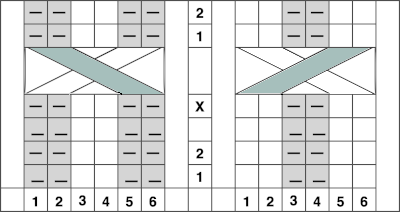 I found the above impossible to knit, even with ladders for extra slack, and the swatch stopped when the yarn broke
  Returning to 1X1 rib, looking at the column alignment in color
  There appears to be enough slack produced in the formation of stitches between beds to make the planned crossings possible.
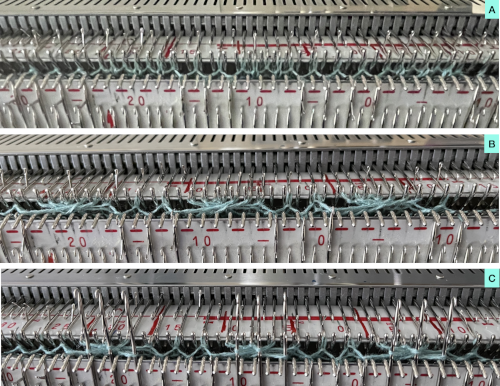
A: the needles transferred to the top bed
B: crossings are made over the 2 center stitches
C: the stitches that had been moved up to the main bed are now returned to the ribber. Bringing cable stitches out and or up to the hold position helps ensure that they will knit properly on the next carriage passes.
The similarity between both sides of the fabric is increased
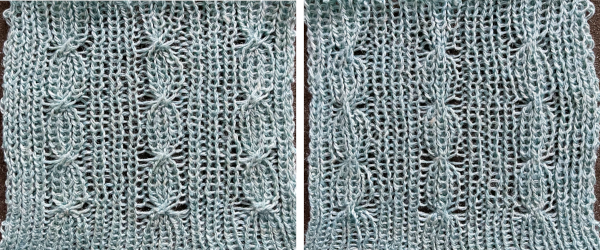 From a Brother pub, small crossings for a smocked effect
  The same approach may be used to create fabrics in tubular tuck patterns, easy to execute in one color. Once yarn, possible crossings, and their minimum frequency have been determined, the start of far more complex shapes can be explored using colors to represent the necessary direction of movements before any decisions are made has to how frequently to cross the cables and to get some idea of negative spaces created between traveling stitches. In hand knitting, a purl ground is easier to plan and maintain.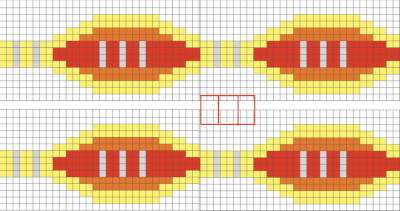
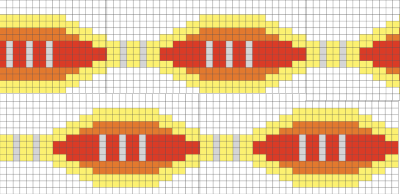 Adding and removing rows in the tables or even changing colors is easy and quick in a spreadsheet, tiling in repeat with scaled screengrabs provides a quick reference for possible improvements/corrections before any actual knitting takes place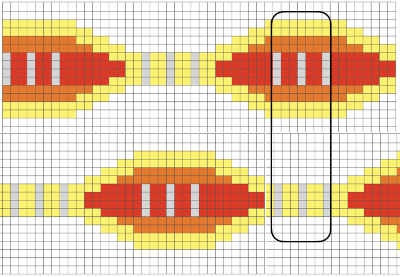
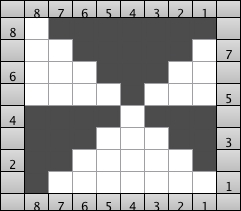
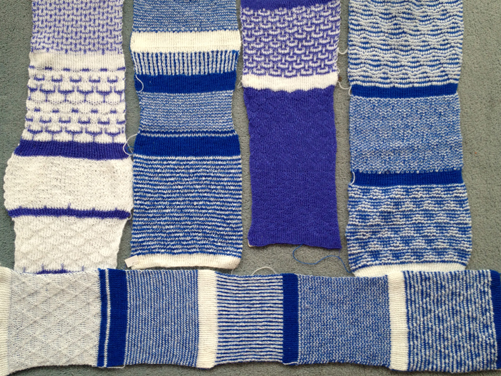
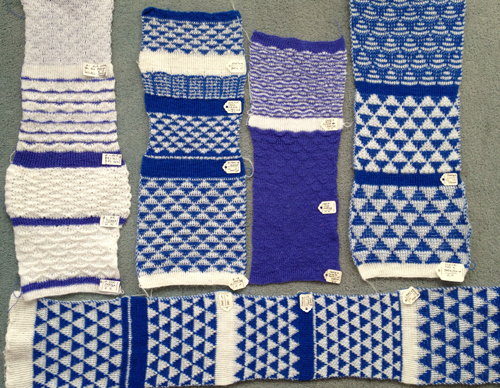 As for more than 2 colors per row, performing the color separations may be achieved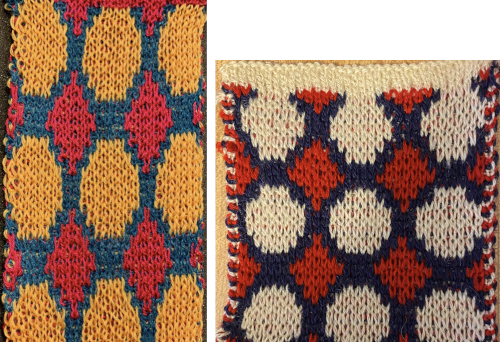
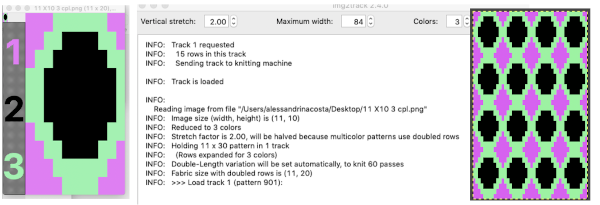 A “hack”
 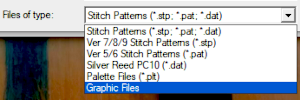 stitch and row counts should match, and save the stp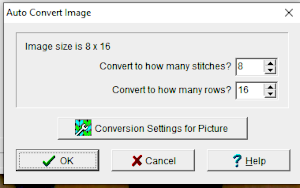
 The separation methods in DAK:
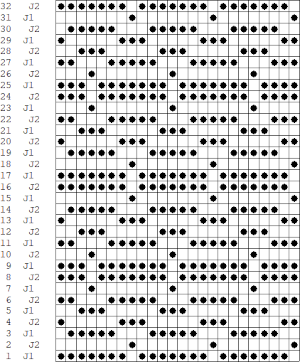

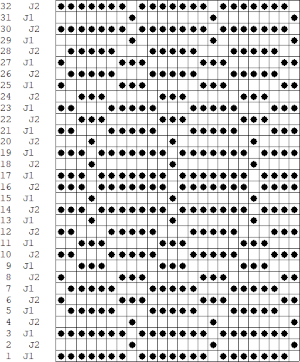 Yarn choice and design make a big difference. Here the yarn is far too thin, and the repeat too narrow in width, but the possible result is illustrated. The main bed is set to slip in both directions throughout. The ribber setting needs to slip in both directions for every other pair of rows. When the ribber slips, the main bed will knit the color that will create the pockets, where there are many single stitches selected here, the KC was set to KC1. When the color is changed and the ribber is set to knit again, stitches in that color will knit on both beds, sealing the fabric in those areas and forming a solid color background on the reverse side. Here the white forms the pockets, and the floats after a pair of passes are seen in this photo.
 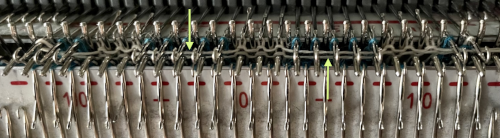 Because the yarn is so thin there is a considerable grin through on both sides, the areas marked with arrows indicate where the white pockets were lightly stuffed with yarn ends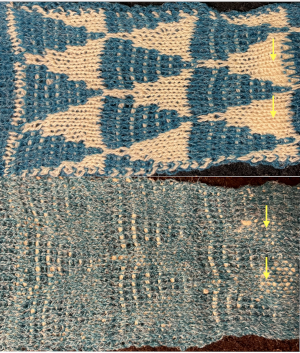

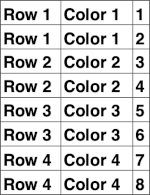
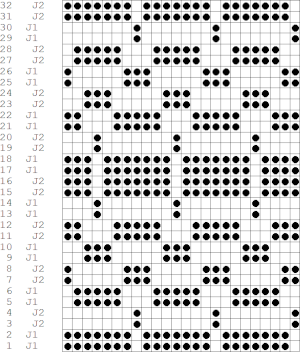 If pngs are created outside the program, they may be doubled in length unless the repeat is designed that way.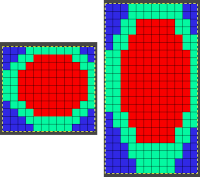
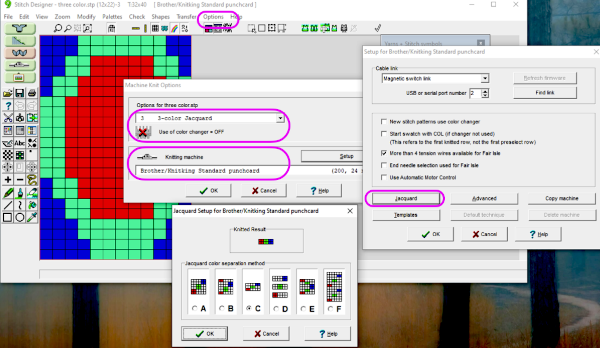 How the different jacquard setups process the specific repeats: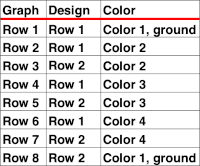
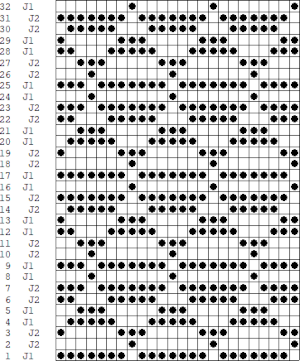 Passap card reader techniques saved from long ago experiments.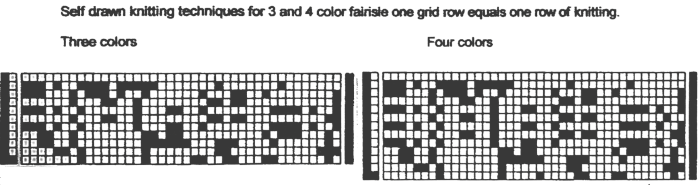
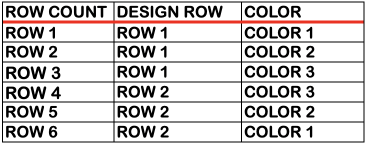
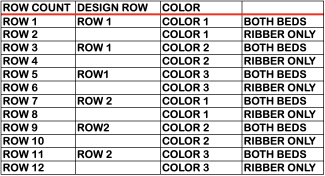
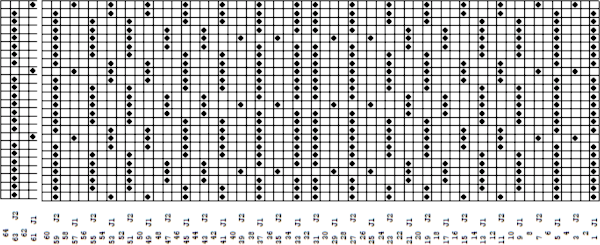
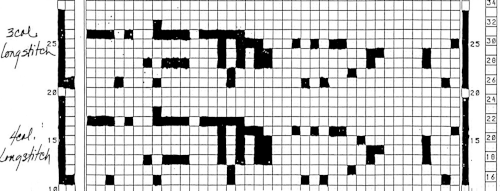 Processing the template using numbers: a table is created twice the length of the 8X16 triangle repeat, followed by hiding the 32 odd-numbered rows, positioned in front of the scaled punchcard template, stitch markings are traced
 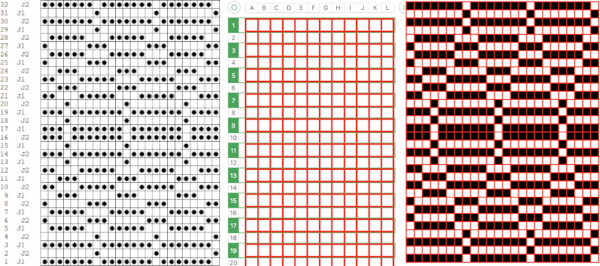 the rows are then unhidden, the repeat is checked, matched here to the F jacquard separation in Dak
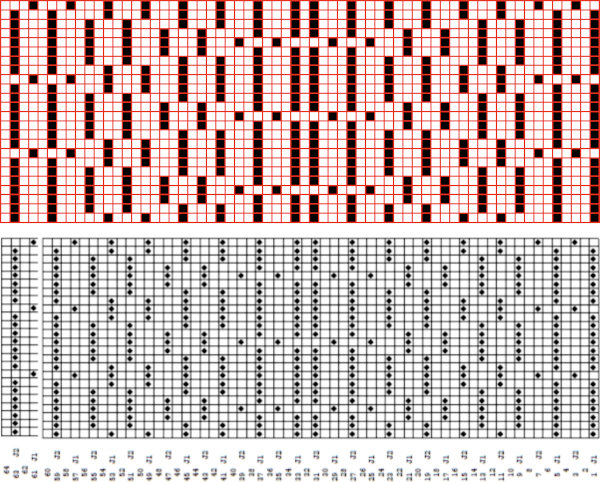 The numbers table is processed in Gimp to obtain the png for knitting the now 24X64 pattern
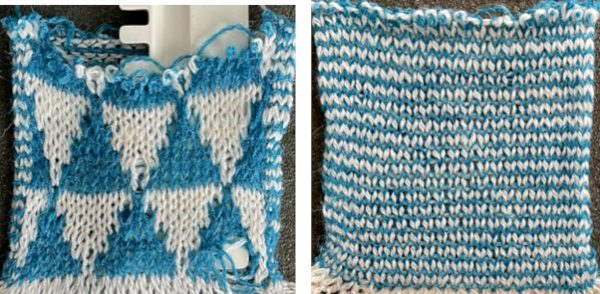
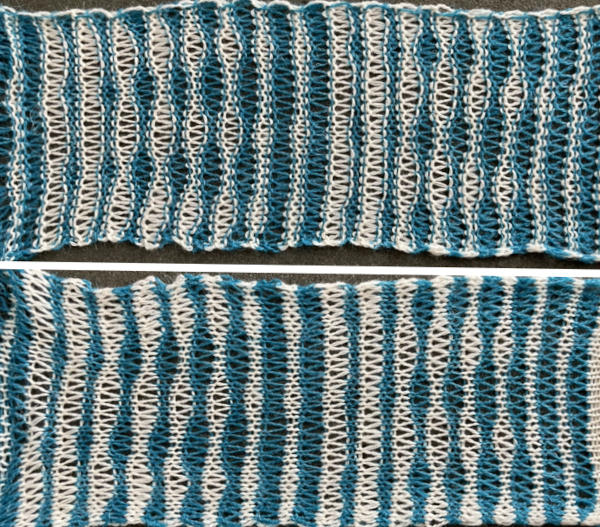 and the pattern executed as a tubular FI knit: I had yarn issues, hence the dropped stitches. Both swatches were knit to approximately the same point in the pattern repeats, there are obvious quality differences in width and length. In tubular knits, there are differences in the width and height of the knit on each side. The front is a slip stitch with floats, drawing the fabric in, while the ribber knits every stitch every other row. With a good choice of yarn and pattern, loosening the tension on the top bed may ease this problem. As often happens, casting on and binding off need special considerations ie to allow for any fabric stretch when off the machine or to leave a tubular knit open at either or both ends if that is the goal.
  DAK has been a purchase made out of curiosity, and my use of it has been very limited since my designing needs are met by using other programs that are free to users and generate and accept files in multiple formats, while the Brother Knitleader or even simple use of the magic formula solves knitting any desired shape in any gauge.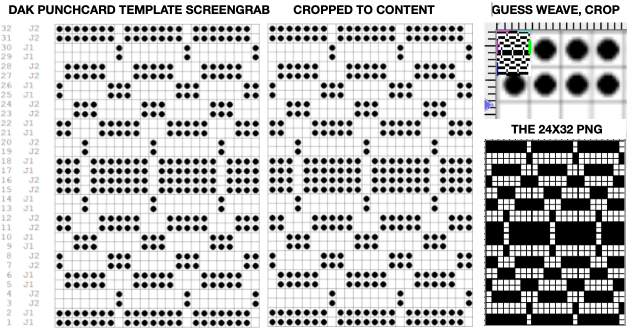

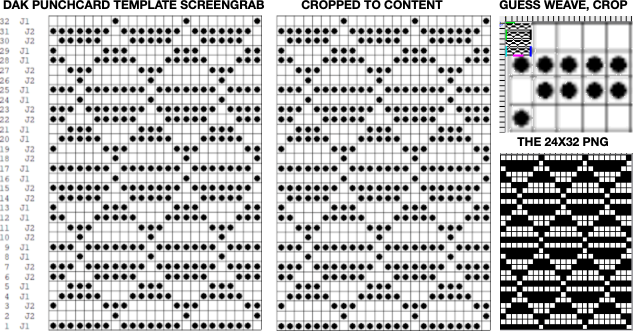

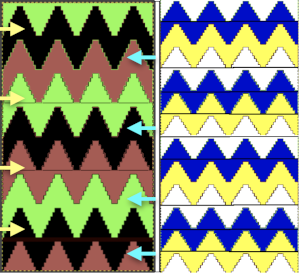
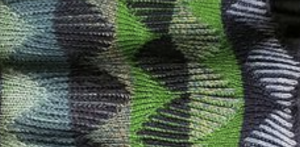 The plan is to create a repeat which may be knit using color changes every 2 rows. Each design row knits each color twice, so the standard built-in KRC separation is not a consideration, though the same cam settings may be used in those fabrics as well.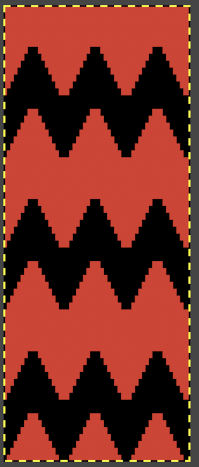
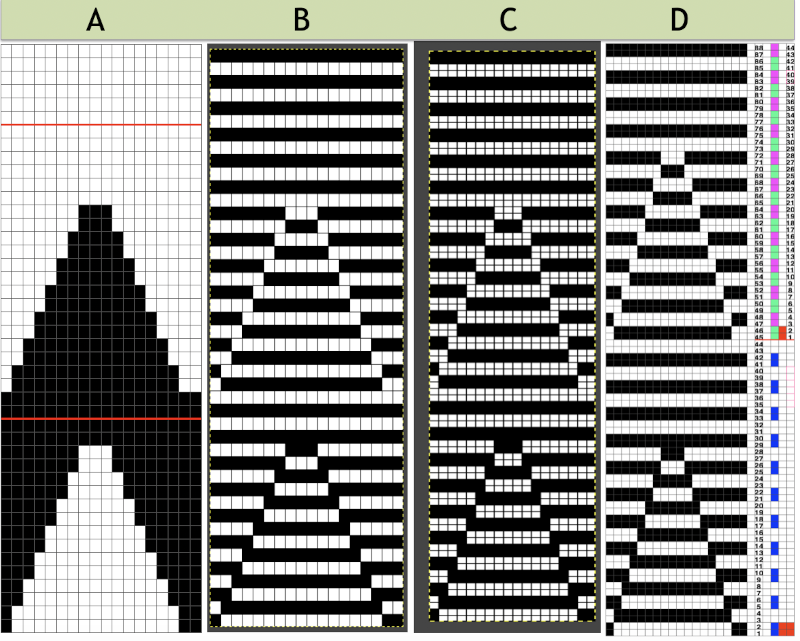
 End needle selection is canceled, the first and last needles are in work on each side on the ribber knitting every row, the first preselection row is from right to left, cam buttons are set after the left side is reached. Knitting in these samples began with the blue yarn in the number 2 position in the color changer. The ribber remains set for knitting in both directions throughout, the images on the right do not reflect the amount of surface 3D textures.
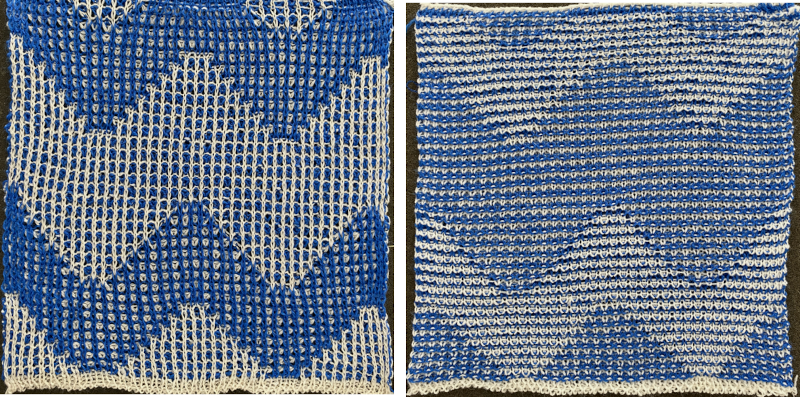 Lock settings are easier to achieve on the Passap than switching out cam buttons in Brother machines. This was knit using 4 carriages. Color one knits with the main bed set to tuck both ways, color two knits with the main bed set to slip both ways. The slip stitch reduces the width of the fabric considerably
 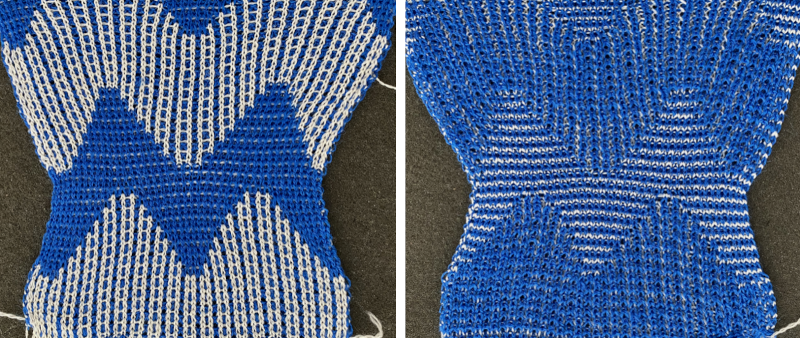 Here each color alternately tucks and slips. The choice of cam buttons matters, tucking first from left to right, slipping from right to left, with cam buttons set COL after the first preselection row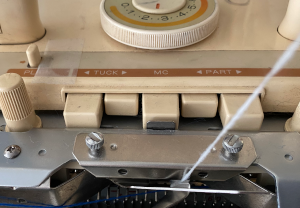
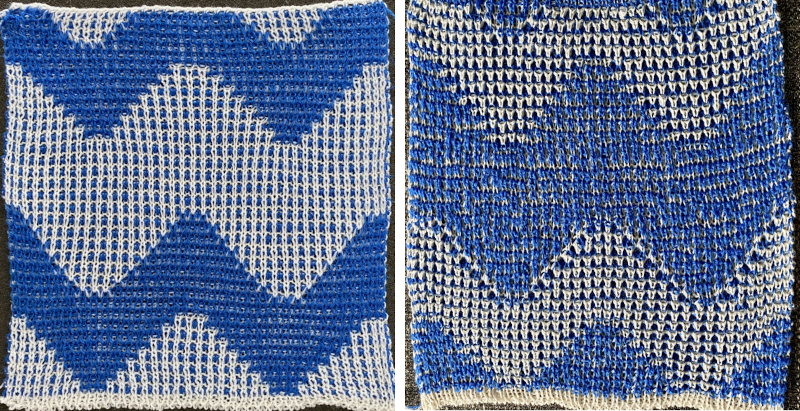 This last cam setting appears to my eye to produce a texture “close enough” to the inspiration fabric. Attempting to add more colors: the repeat, D, is still 18 X 88 but is now shifted slightly.
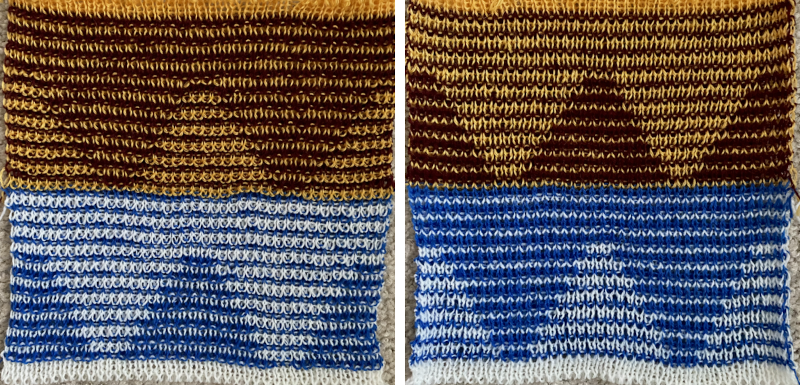
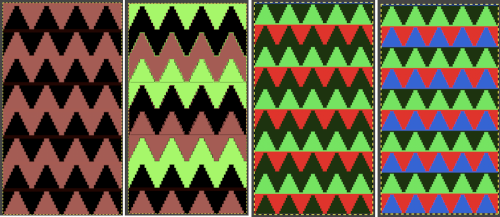 The existing repeat may be reduced further to 18 X 64, eliminating some of those extra rows in the center of the chevron shape
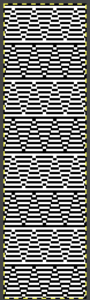 Whether or not the design is intended to retain chevron shapes in alternating textures, actions may be plotted pre knitting in any way that visually makes sense to the person designing the pattern and tools available to them.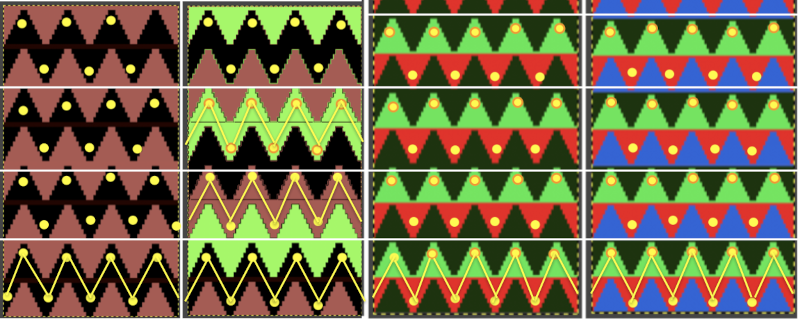
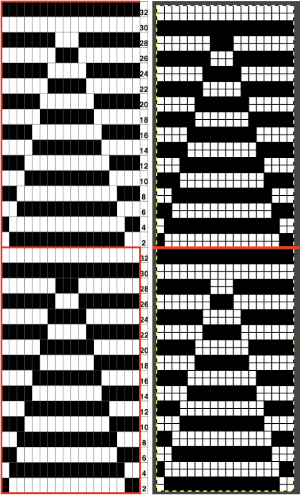
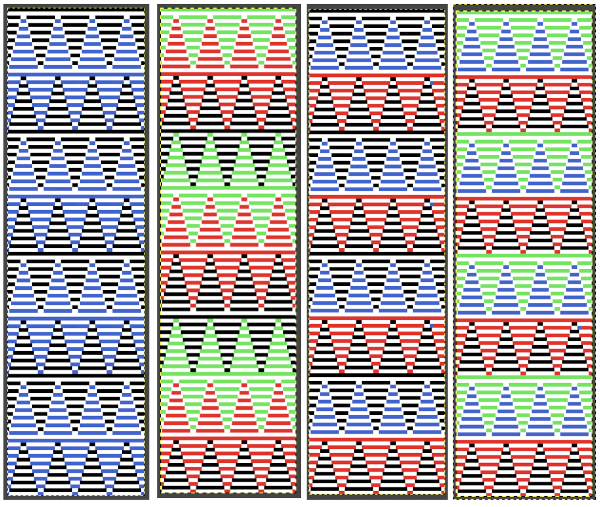 Reversing the png so that the more textured stitches will begin with the color in yarn position 1
 Using either repeat, color changes now occur after every 32 rows knit. Another color change location clue is in the needle selection change above and immediately following the red border in the chart on the left.
  Adding colors can be planned cautiously or allowed to happen randomly depending on the preferences of the designer and end-use. Ribber fabric designs are not visible until several inches have been knit, too late to catch color sequence errors. Some machines allow for memo placements or sounds to help track color changes, but only within the initially programmed repeats. A quick spreadsheet can provide customizable checkboxes or added information. For an attempt to retain chevron shapes in different textures: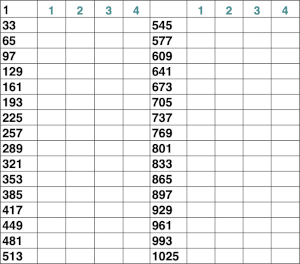
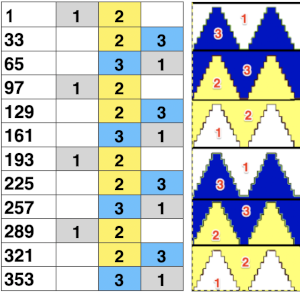
 A PDF including row numbers and space for notations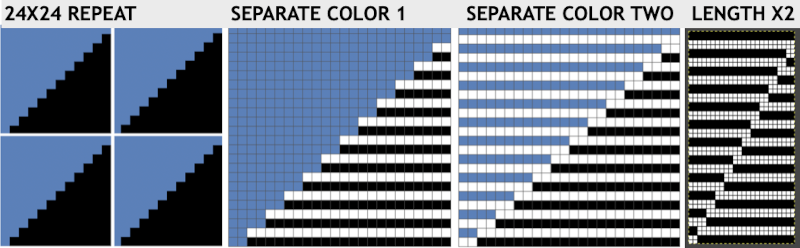
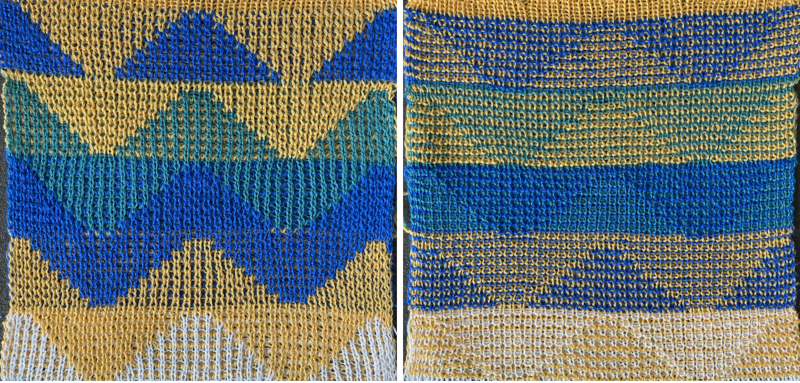
 The test swatch and observations: patterning was begun with color 2, yellow.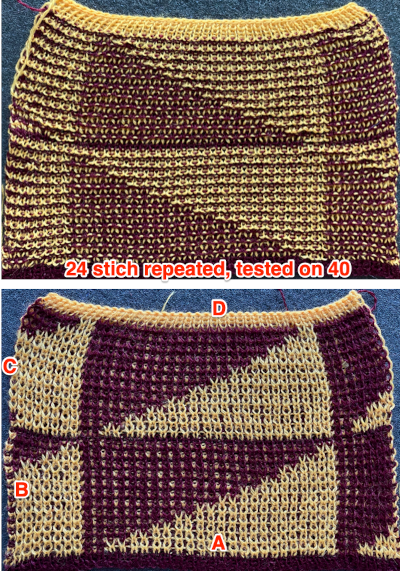
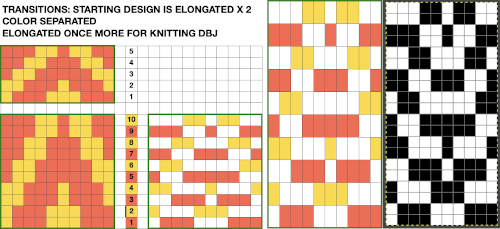
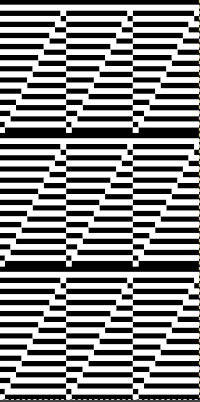 Continuing on a 24 stitch repeat, the original design may be rendered at double height and separated once more, doubling the separation height to 96 rows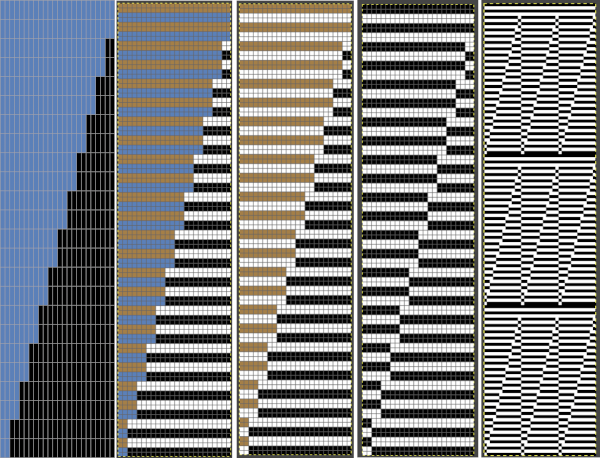
 There are days when either or both machine and knitter need a break. At the start of the first swatch, the cam buttons were not set, resulting in plain knit stripes. At its top, the purple did not get picked up properly from the color changer, and the knitting of course fell off the machine. On a second try, the same issue happened again with the purple yarn. Multiple incidences of such events were fondly nicknamed “dropitis” by my students. The test is on 24 stitches, the width of a single repeat, the triangles are much more balanced in size, this knitter is putting this pattern to rest.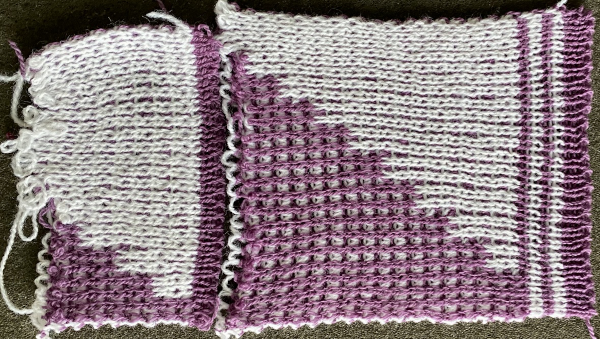


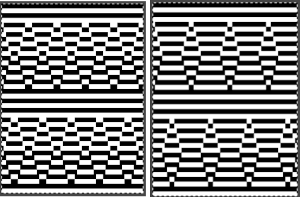
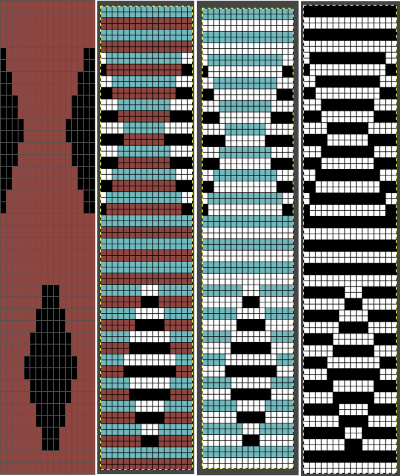
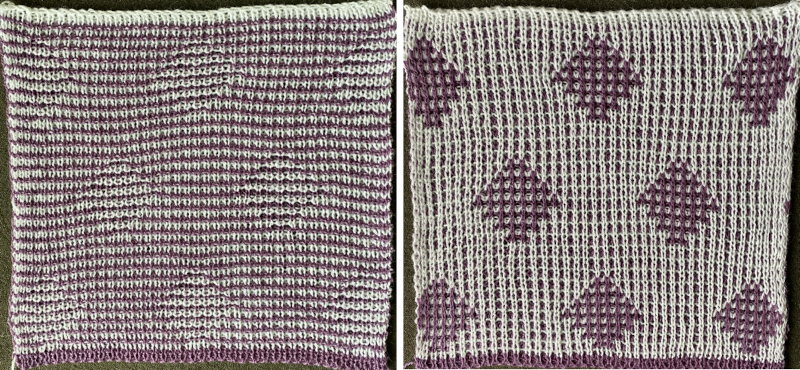
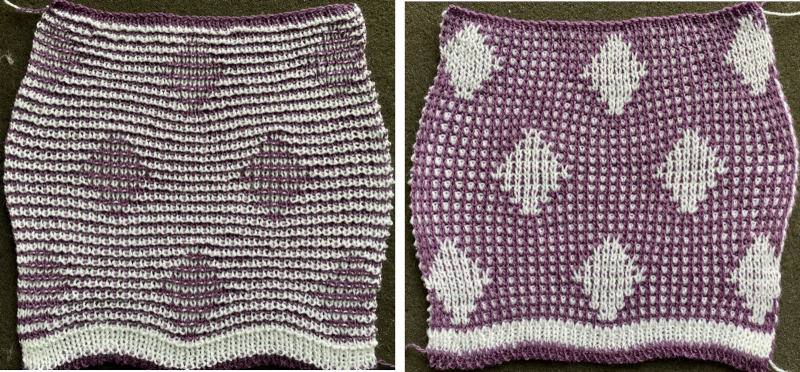
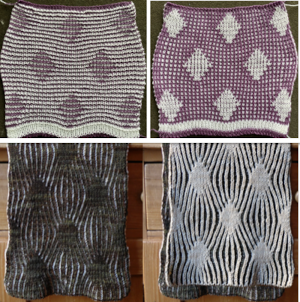 Another even more complex inspiration from a sweater attributed to Falke, Spring 20 collection, using similar stitch structures, but in addition, also transferring stitches between beds exposing a purl striped ground.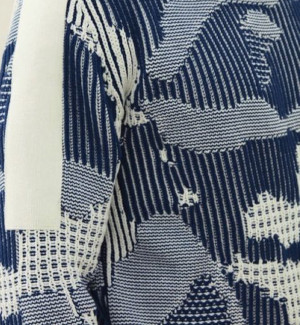
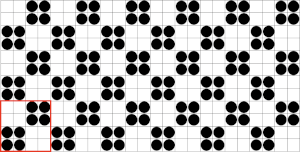 Adding needles out of work by simply choosing to cast on and working on every other needle it does not matter whether even or odd needles are in use, the pattern will be identical but simply shifted over by one needle. For frequent color changes, make the first preselection row toward the color changer to start with, keep notes as to where the repeat color selections happen as experiments are expanded, evaluate color choice as a third or even fourth color are introduced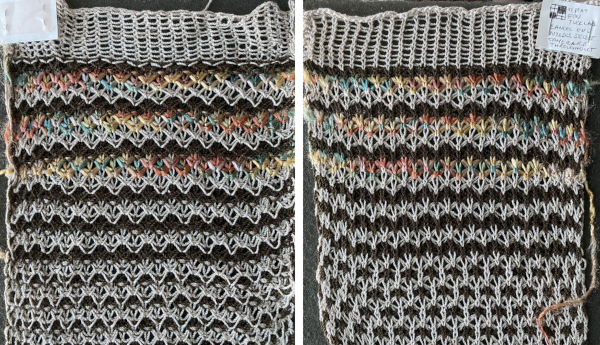
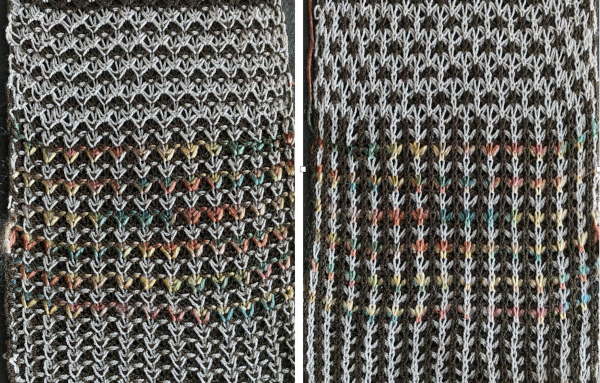
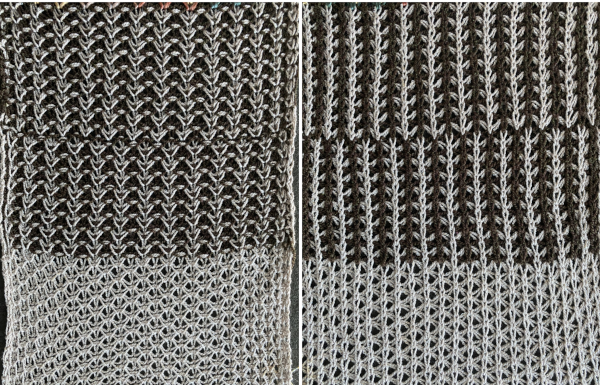

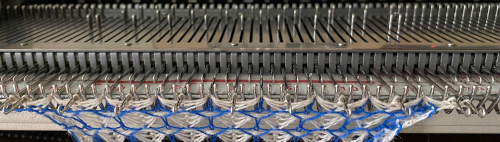
 the third tuck row on the machine
  the fourth tuck row with needle preselection for the first all knit blue row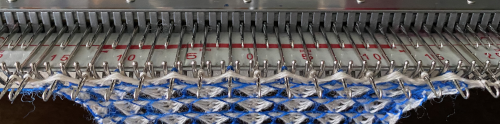
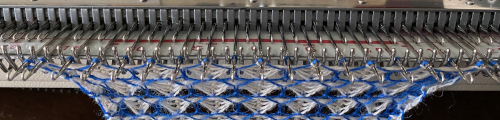
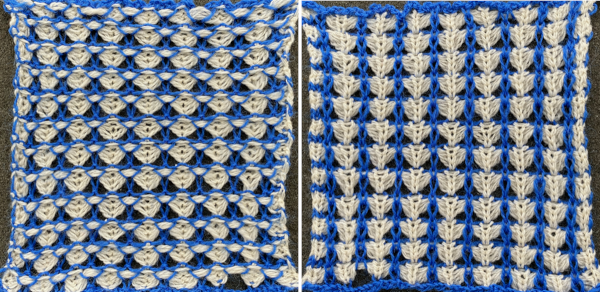
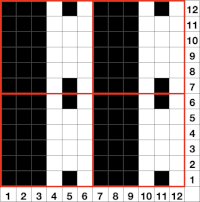
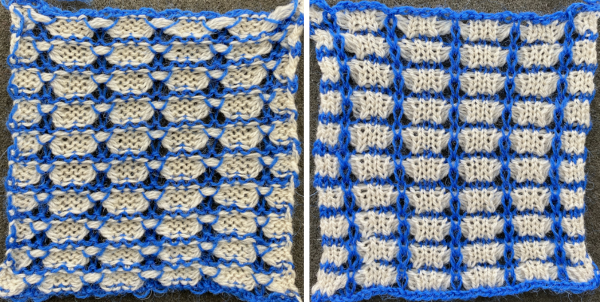 Two from one: the same tuck repeat was altered by changing the needle out of work arrangements. Slub yarn may be used but changes the value of the lines formed by the floats created in the needles out of work gaps.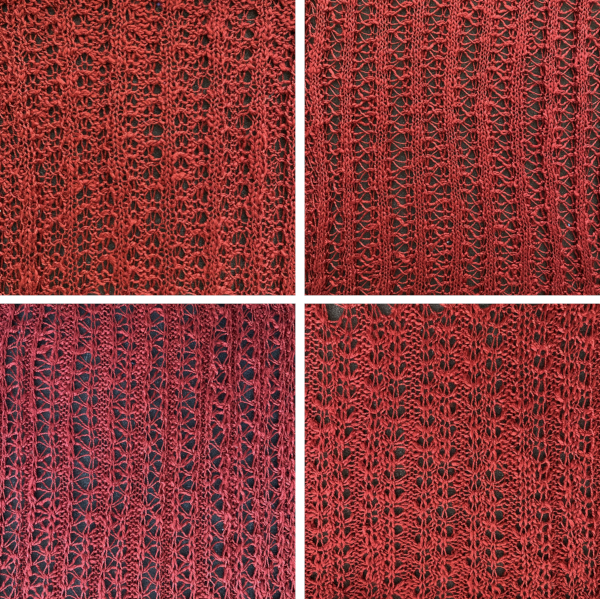
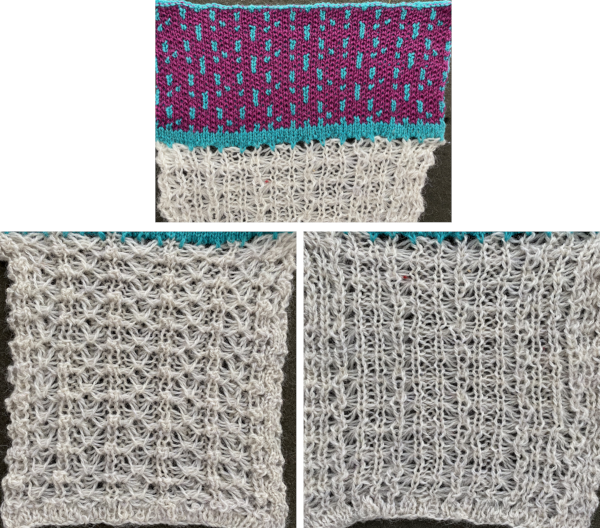
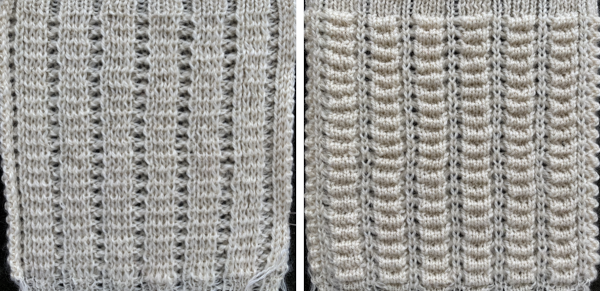
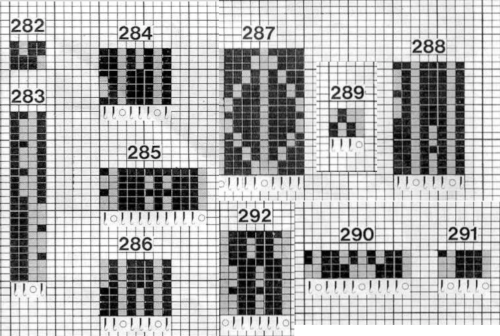
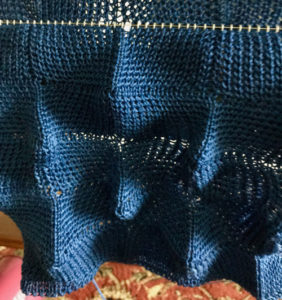 Nearly all my previous dbj pieces have been knit on a Passap E6000. The 930 experience for such repeats is new to me. With some help from Tanya Cunnigham in reviewing the steps required when using img2track, I returned to cellular automata repeat saved years ago.
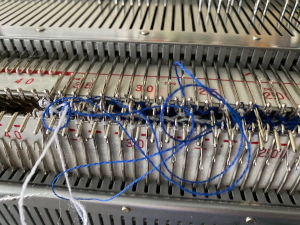 That provided an opportunity to decide I preferred the reverse color placement as well as wanting a thicker ply for the white, resulting in twice the fun with 2 colors, and another scrapped sample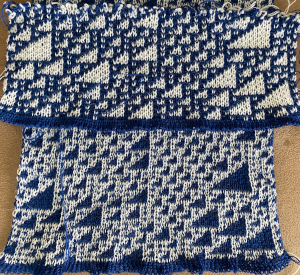
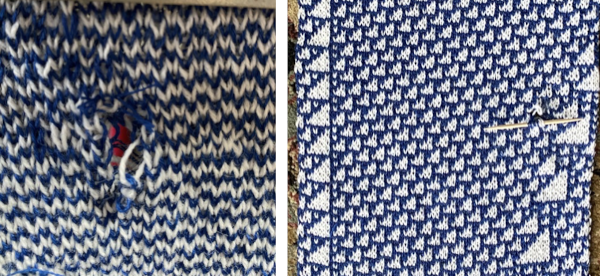 I was able to achieve a reasonable repair on the knit side, but the birdseye pattern on the reverse is a bit scrambled.
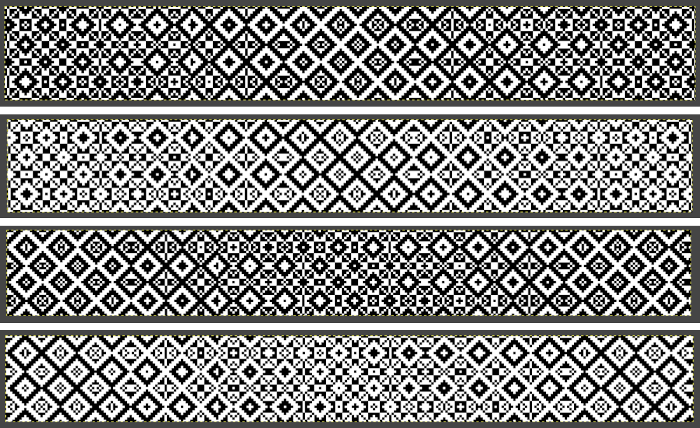 There is also potential for exchanging colors to get a sense of how the pattern might appear in different colorways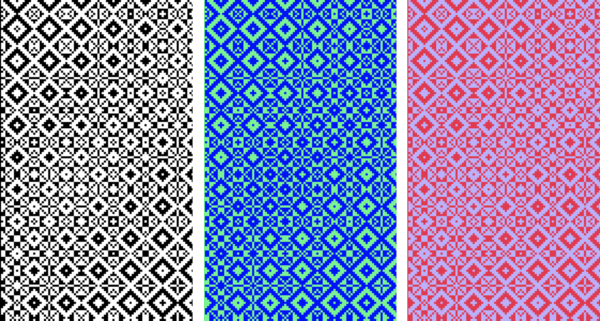
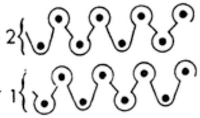 translated for knitting, patterning may be used on either bed, with the opposite bed set to knit every stitch. If patterning is on the ribber, have the first and last needles in work on the main bed.
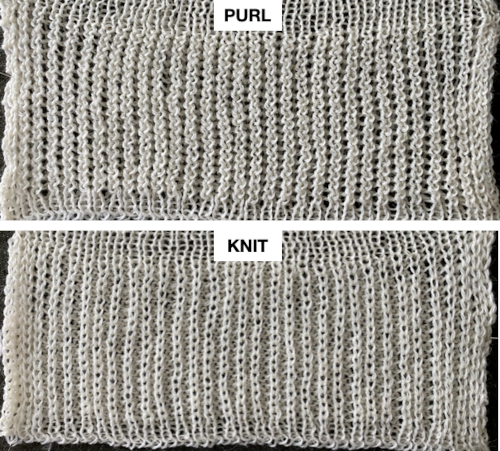
  The top bed is set to tuck in both directions, the fabric is shown lightly stretched
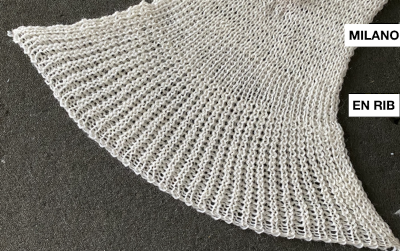
  and could conceivably be used to create a ruffled edge when followed by narrower stitch types ie. every needle rib or Milano variants
  Changing settings: with the knit carriage set to slip in one direction, knit in the other, the ribber knitting every row
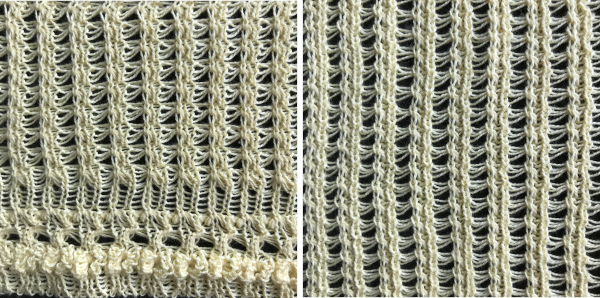
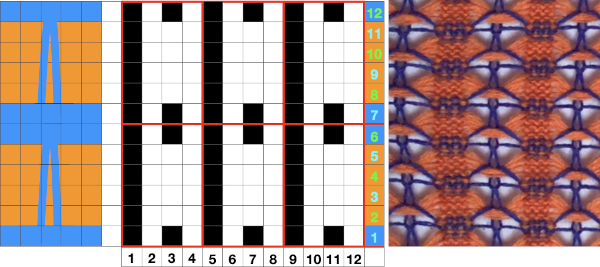
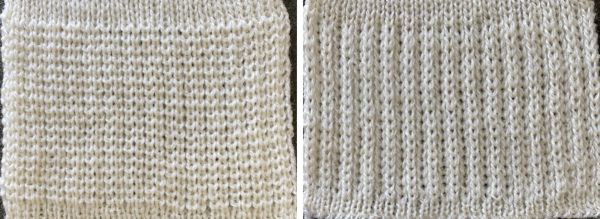 Needles may be taken out of work to create pleats in every needle ribs, alternating their placement between the 2 beds. Knit stitches stabilize tuck ones. Here every other needle is taken out of work on only one bed. The tuck loops are more visible in any open spaces between the vertical rows of ribbed stitches. The ribber will knit every row on the same needles aligning directly above each other, thus ruling out full pitch.
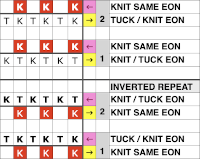 The needles are set up so that the first and last are in use on the ribber, ensuring that a knit stitch will be on the side of any tuck stitch selected on the top bed,
 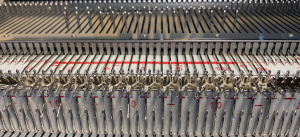 on the top bed the every other needle tuck selection reverses as the direction of the knit carriage does, needles brought forward knit, the ones skipped hold tuck loops in their needle hooks,
 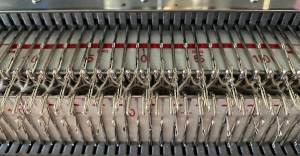 the resulting fabric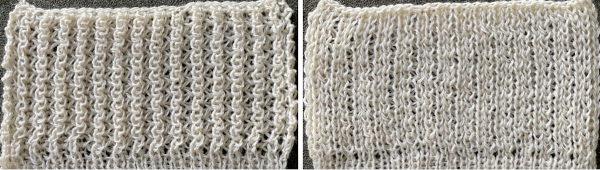
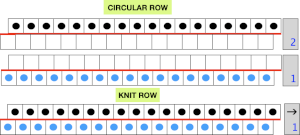 Choosing spacing between needles in work on the main bed
  A working repeat with 4 circular rows, 6 full rows knit
 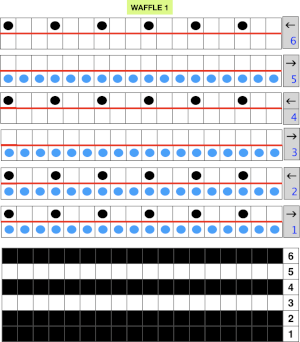 My first swatch in the technique was in response to a Ravelry member share describing the stitch pattern used in a finished garment
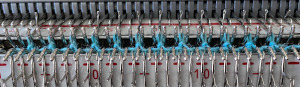 followed by float formation when only the top bed knits
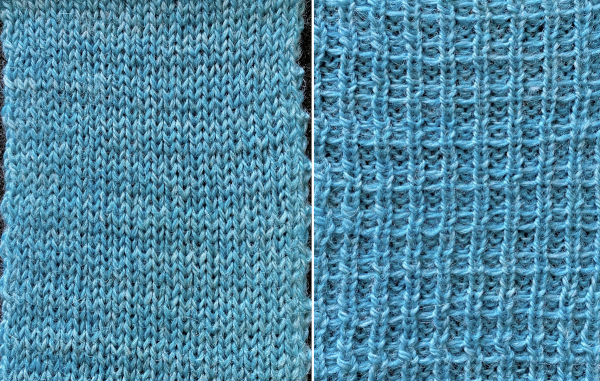 The resulting grid may be used as a guide for hand techniques off the machine in isolated areas or all over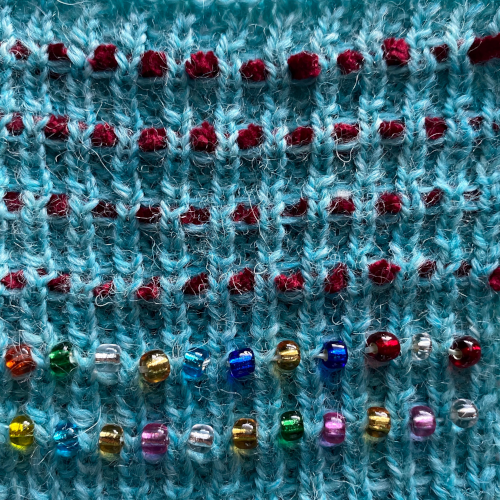
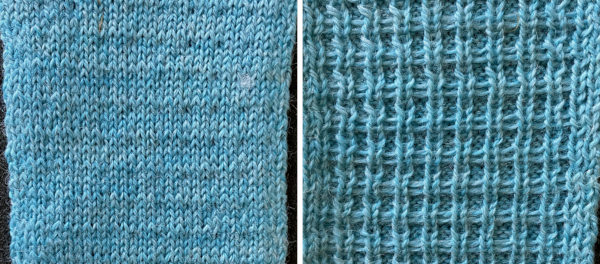 Needle arrangements may be varied to accommodate thicker yarns, or alter the texture by varying both the number of knit rows and circular ones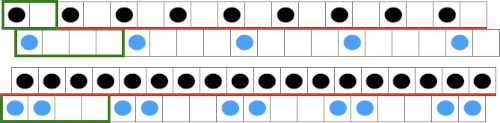

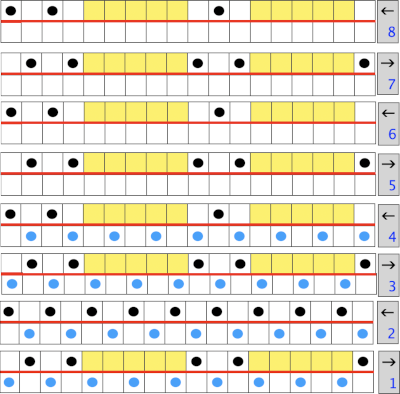 Because the top bed needles are in pairs, the EON selection remains evident, each of the first 2 passes completes one row of knitting.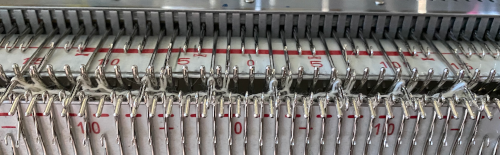
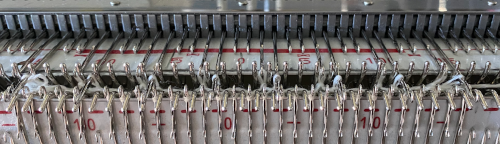 When only the top bed knits, floats are formed between the needles in work
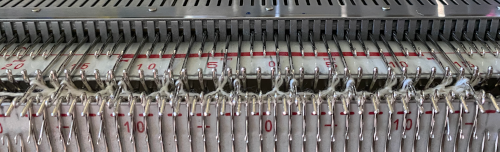
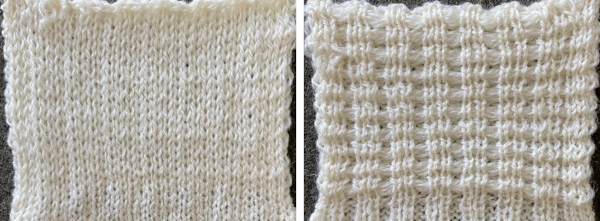 Half Milano with tucked long stitch: the main bed needles will tuck one row, then slip one row. The ribber needles will first knit a row, then slip a row while the second bed knits both rows. Then the ribber needles knit one row then slip a row while the second bed knits two rows.
  I have had no success with trying to execute my interpretation of the directions without getting floats on the top bed, and the photo in Machine Knitter’s Guide to Creating Fabrics is not clear enough to distinguish if there indeed are floats on the surface of the fabric. The experimental repeat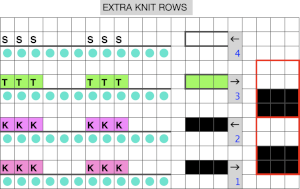


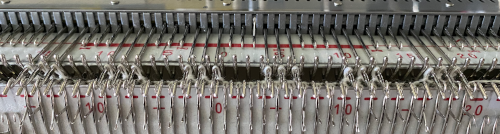
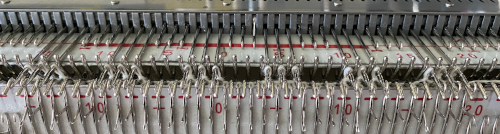 the tuck row is formed with the knit pass to the right, no preselection
 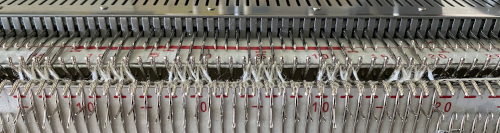 the row of stitches is skipped on the way to the left, preselecting for the next first knit row, tuck loops visible on top of the hooks of the selected needles
 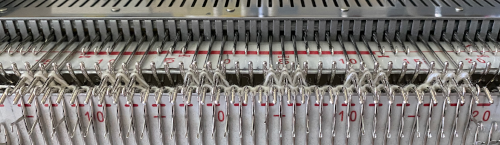 the process is repeated. The resulting fabric: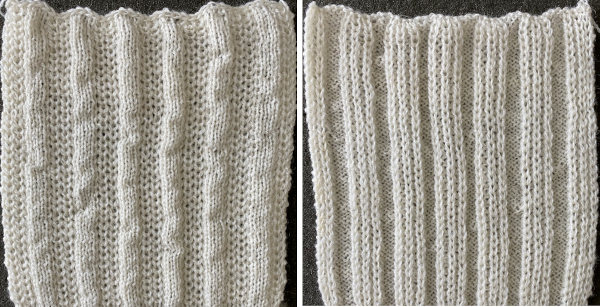
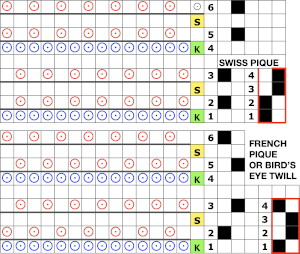
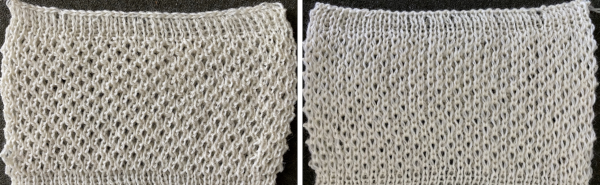 In DIY the potential for exploration is endless. As always, if needles are out of work on the main bed, end needle selection is canceled. Here slip setting in both directions is used, along with needles out of work on both beds, the 1X1 needle repeat is programmed.
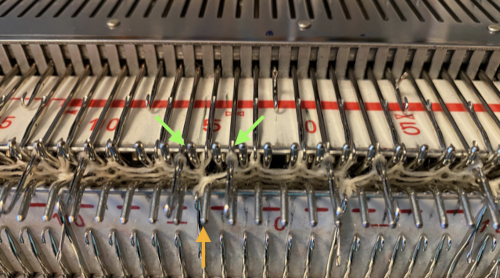
 the result has floats on the purl side, a slightly pleated look on the knit side.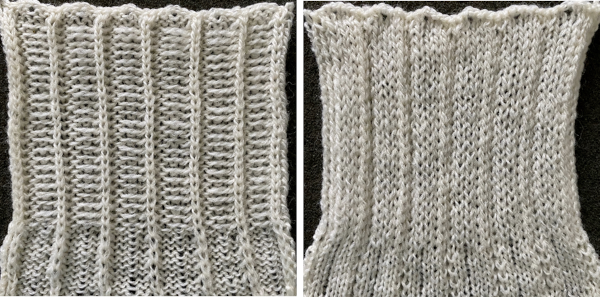
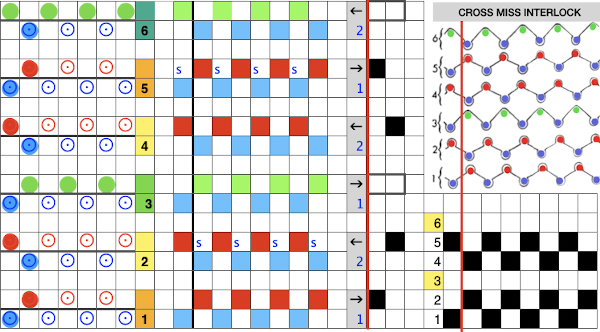
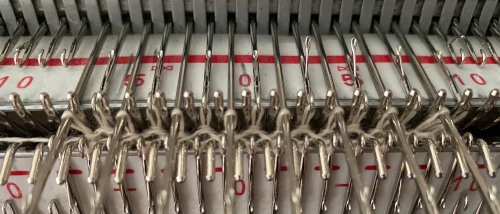 After both no preselection row bring alternate needles out to hold using any EON needle tool. In my case, COL, I began with needle 1 on the left on row 3, alternating beginning with needle 2 on the left on row 6. The number of rows in between hand techs is an odd one, so sides for the hand tech will alter as well. This shows the tuck loops formed EON as the carriages travel to the right.
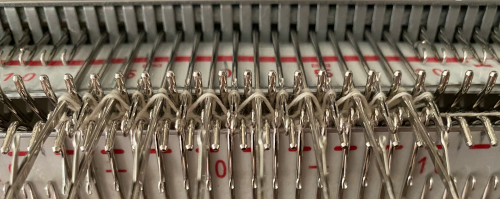 Prior to resuming pattern knitting, needles with loops on them need to be returned to the B position, maintaining the EON needle preselection for the next pass
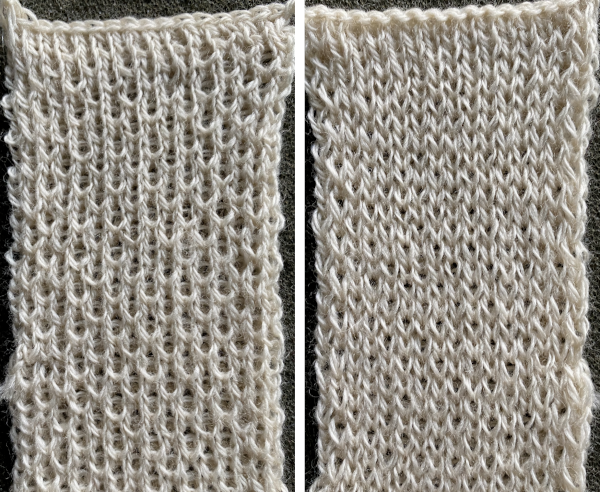
 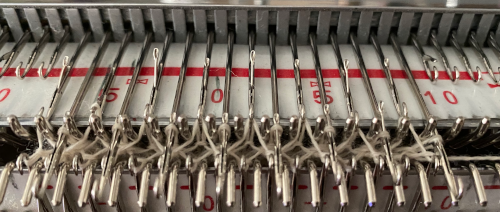 Repeat the process when design row 6 is reached, beginning with needle 2 on the left. The texture appears on the purl side of the piece, shown on the left
 This repeat uses 6 passes as well. The tuck loops on the top bed occur above slipped stitches in the previous pass, which may be replicated, but the real problem is that every third row on the ribber is also having to tuck on specific needles with no knit stitches between them. The tuck loops happen directly above knit stitches formed in the previous row if the tucking lever is changed manually from R to P on those rows. That is a lot to juggle, a no.
 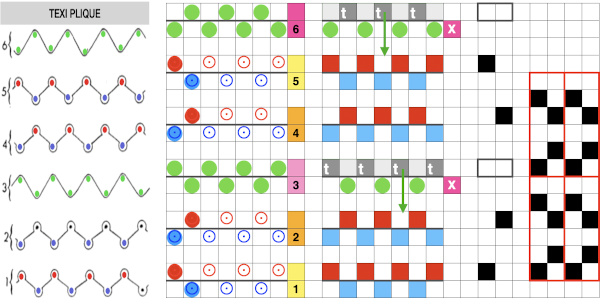 Here the eon tuck would fall on slipped stitches in the previous pass, so that is doable. It is possible to fool the lili selection into believing there are extra needles in work on each side of the ribber, which can “make” the first stitch on either side knit rather than slip or tuck. The method is used in creating a
 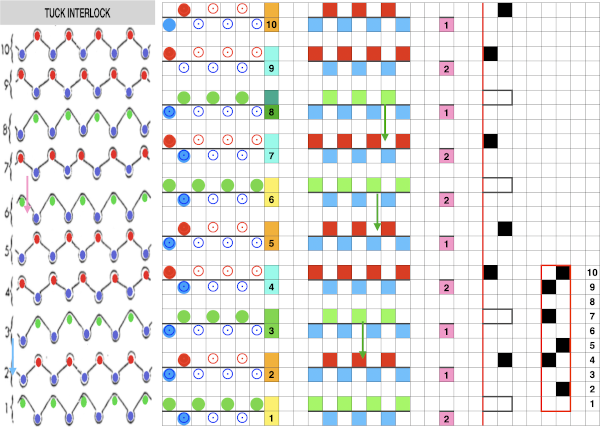 This pattern repeat is a short one, the changes are more regular on the ribber. The hand tech tuck stitches could be formed for 2 rows with all stitches getting worked back to B position in between those preselected for the next pattern row. The lili buttons need to get fooled after alternating pairs of rows, the start of several nos for me.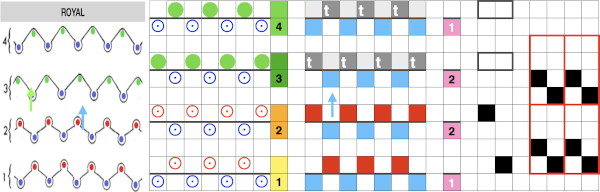
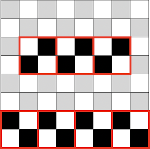
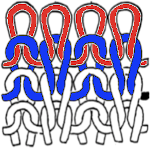
 Planning for interlock: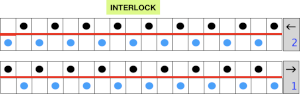
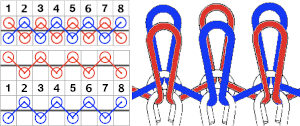
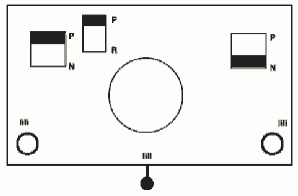
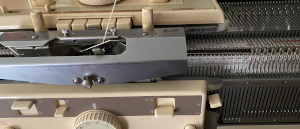
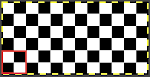 when the lili buttons are used with the machine set to slip in both directions. Studio or Knitmaster knitters would require an RJ1 ribber carriage. I refer to the marks on the Brother ribber needle tape as blanks and dashes. When lili buttons are in use, one must work on an even number of needles. Pairs of both are required. The starting placement on either of the 2 marks does not matter, the first needle on the carriage side on the left will always slip, with the last stitch away from the carriage always being knit. This observable if one “air knits”, slowly moving the ribber carriage from side to side. As in any pattern knitting, needles selected to D or E will knit, the ones lined up in B position will slip or tuck.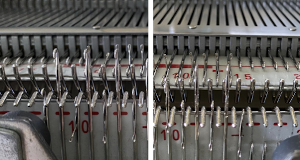
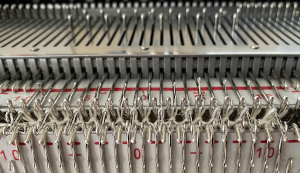 Imagining the sequences required to complete a single row of knitting. I prefer to start with a knit stitch on the left, top bed, end needle selection is canceled
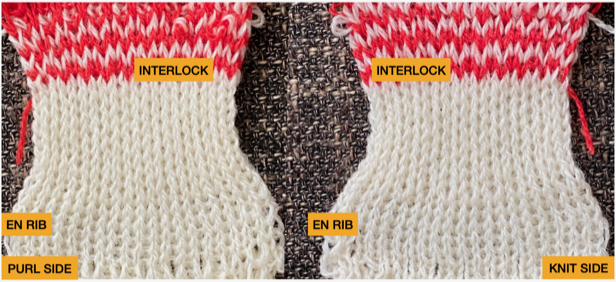
  When testing new ideas, particularly in rib setups, I often begin on a small number of needles and in a way that feels “safe”. This was my first test, with the ribber set at half-pitch. There is an obvious difference in rib before the slip stitch segment and the every-needle, EN, segment.
  Using a very thin space-dyed cotton, tension 4 on both beds, produced a soft, drapey, squishy fabric. Because once the cast on and needle set up are complete, the knitting occurs on every other needle in alternate directions, full-pitch is used without any problem even though every needle is in use on both beds.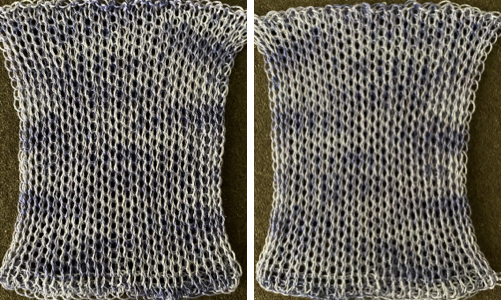
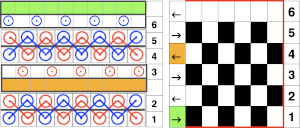
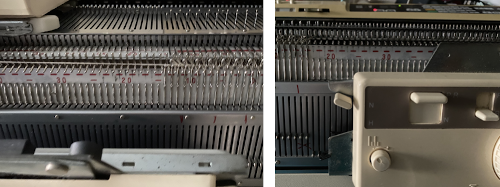
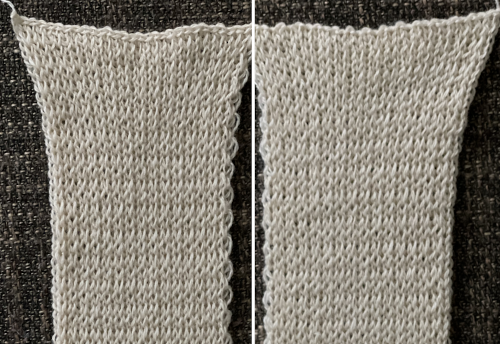
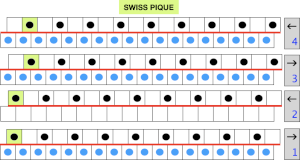
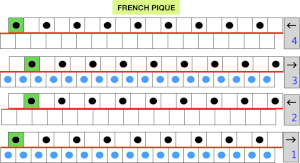
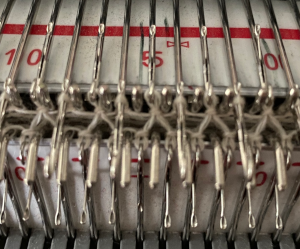 after only the top bed knits with slip stitch floats behind every skipped stitch, which, in turn, will appear longer on the knit face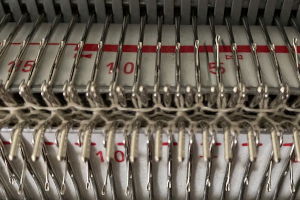
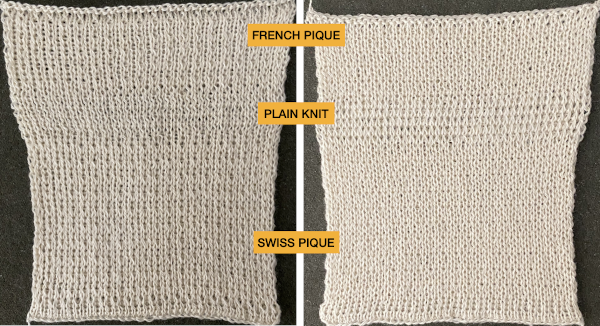 Ponte di Roma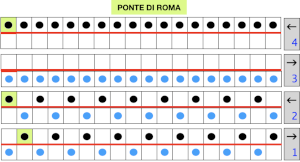
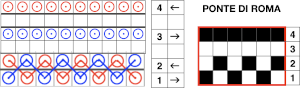 the modified version of the repeat used in my test swatch
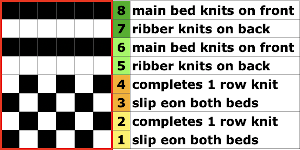 Pairs of rows of interlock are followed by pairs of circular rows. The repeat was changed and the second color was used to define the difference in stitch formation between the two groups, color changes were made every four rows.
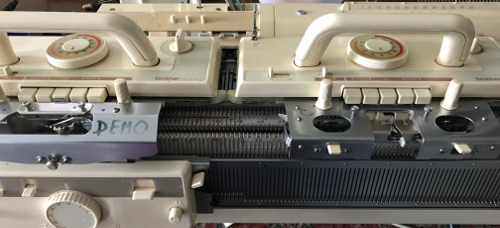
 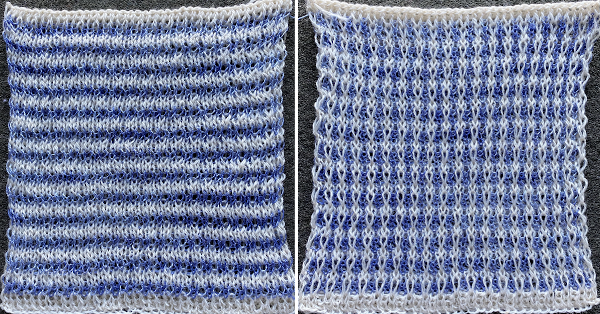 Using a single pair of carriages and having to constantly change cam settings appears far too complicated to manage for producing any length of fabric. My hack for making things easier and faster was to resort to knitting with 4 carriages. One pair was set for interlock operating from the left, the other set so as to achieve tubular knit. The ribber carriage is set to knit from right to left and to slip from left to right when the main bed knits. The knit carriage is set to slip in both directions so that the pattern selection remains continuous. It will slip all stitches while moving to the left on rows with no needle preselection, knit on all preselected needles on its return to the right.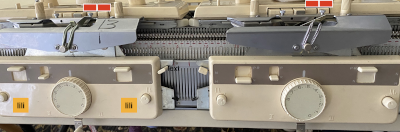
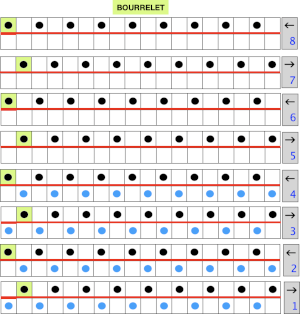
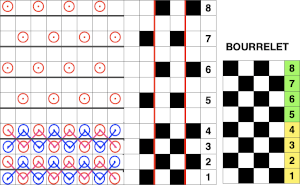
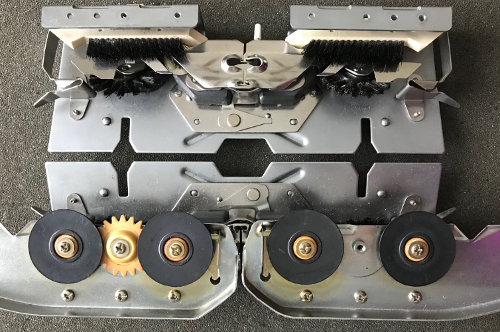
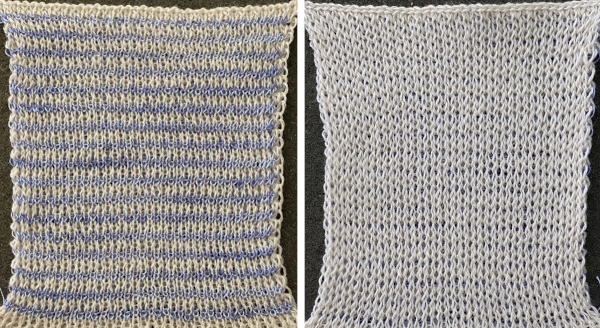
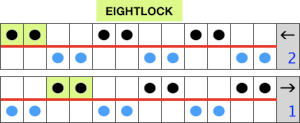
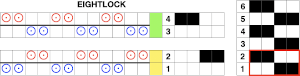 My initial test was to knit twice as wide a repeat, thinking it might be easier to identify stitch formation, working on 4 X an odd number of stitches, in this case, 36, beginning and ending with knitting on the top bed,
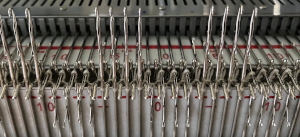
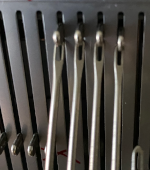 single row pockets are formed.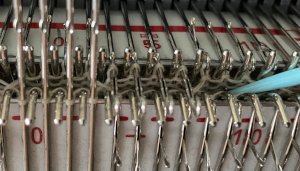

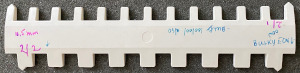

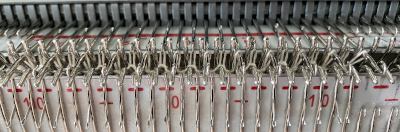 With both part buttons pushed in, in every needle rib, the needles in D will knit, the ones in B get skipped completely. As the carriage passes to the right, the needles for the next row are preselected, come forward holding only the skipped stitches in the row just knit, while the alternate needles are set up to be skipped on the next pass to the left
 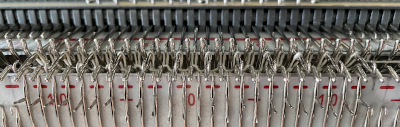 After the two passes one full row of knitting is completed on the patterning bed. The needle preselection is now on the next row of the repeat, in this case, row 1.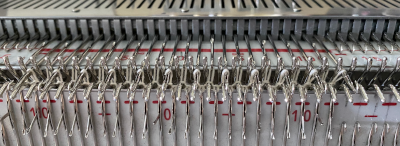
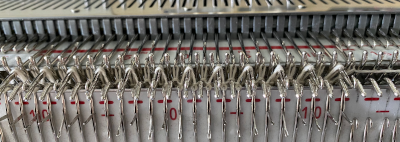 The process repeats throughout. Two passes complete a single row of knitting. The carriage actions for completed passes 1 and 2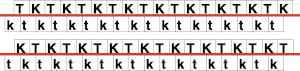
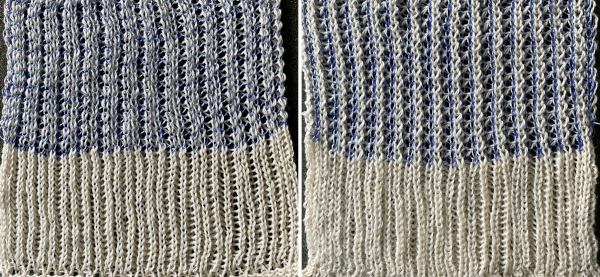 The close-up begins to make the tuck loops a bit more visible. The swatch was knit at half-pitch. Using full pitch in patterns that allow for it, diminishes the appearance of “ladders” between rows of stitches, indicated by cyan arrows.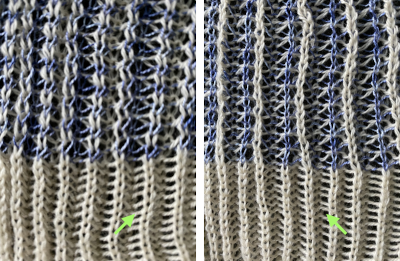
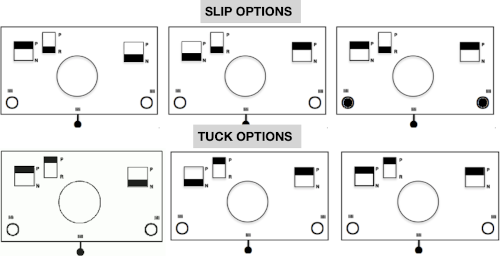 Manually the tucking lever position can be changed from R to P for a single row or more of tucks and then returned to the R placement. Switching between the 2 stitch types on the ribber is far easier and less complicated than changing cam buttons on the main bed, however, there are no rows where only tucked loops are created without knit stitches beside each of them if the lili buttons are in use. Using the slip-tuck Brother selection on the main bed allows for slip and tuck settings to be used at the same time in the same row as long as opposite cam buttons are in use. Some of the old punchcard books include patterns referred to as “lace-like” using the setting. The starting side makes a difference in results as to whether one leads with a slip stitch float or a tuck loop in the actual knitting. Swatches in this post have begun with the first needle in work on the ribber and a forward, to be knit, stitch selection on the first needle on the top bed, with an even number in work on both beds. The end needle selection is canceled unless stated otherwise. The cam setting used for these tests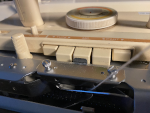
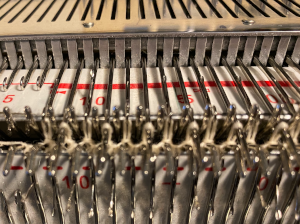
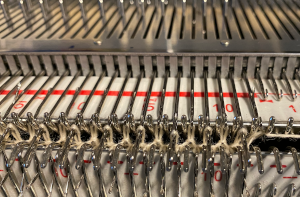 After the return pass to the left, the tuck loops are evident on top of the needles preselected forward to knitting position on the next pass to the right. Two carriage passes fill one row of knitting, here ending COL.
 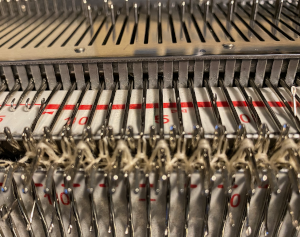 On the ribber, as seen in the thumbnails, one may choose slip or tuck in one direction alternating with an all knit row in the other, or tuck or slip in both directions in an alternating pattern EON_EOR, on an even number of needles with the addition of lili buttons. The appearance on the ribber of the formation of the loops echoes that seen on the main bed changing needle placement unless the carriage is set to tuck in only one direction.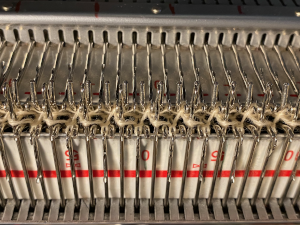
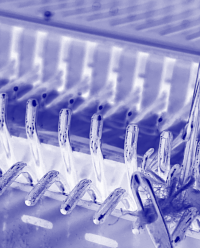
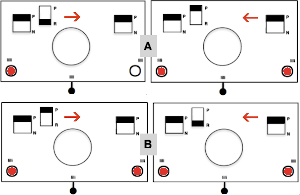 A test can quickly be made to observe the stitch formation with the main bed set to knit every row. I chose the left tucking lever down to R when the carriages were on the left, up to P when the carriages reached the right. The tuck stitches with no further action line up over the knit stitches in the previous row
 Experiments outside the interlock family: the two-by-two repeat is supplied in most packets of cards that come with the purchase of a punchcard machine. At one point in time, Kate Armitage published a book containing 104 variations of knitting using the card, both single bed and combined with ribber use. There was also the equivalent for card #3, the point being variations are limited only by time and imagination.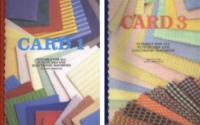
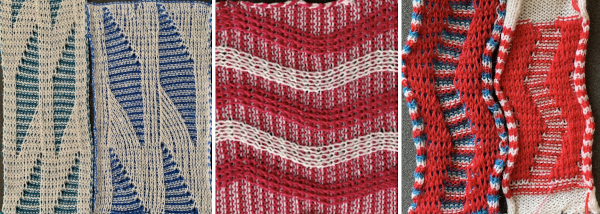
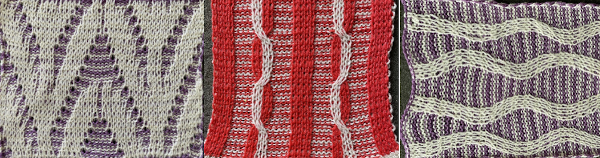
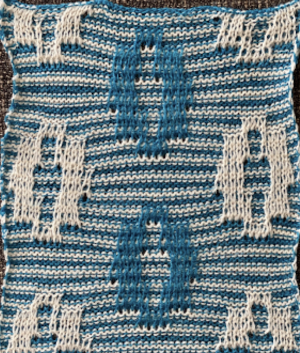
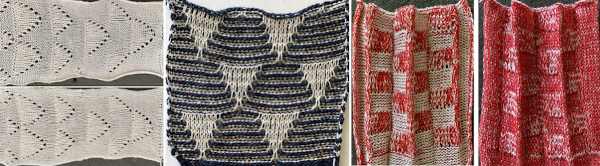
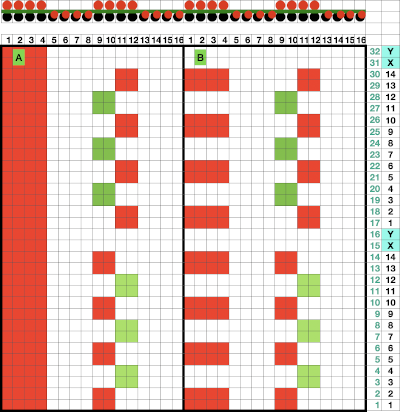 If the intent is to have solid vertical columns of color, those areas as in column marked A, need to be adjusted for using alternating colors as well. Using the repeat on the left of the chart
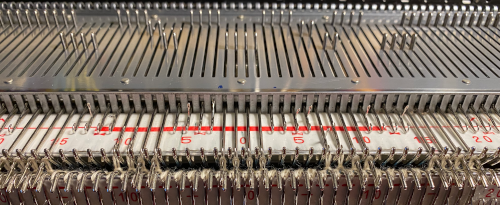
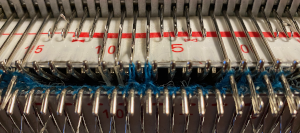
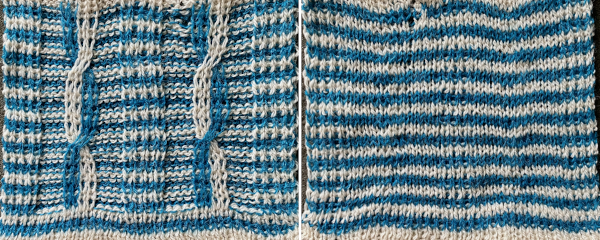

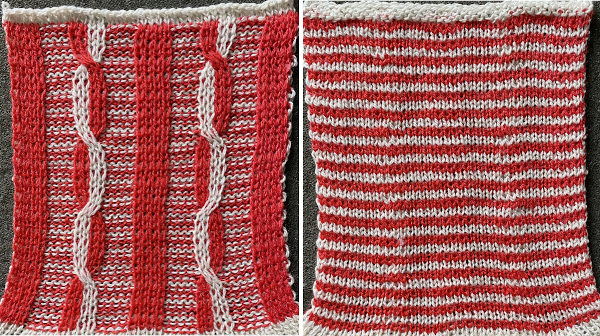
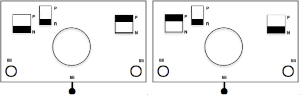
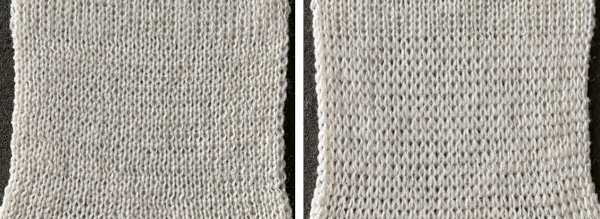

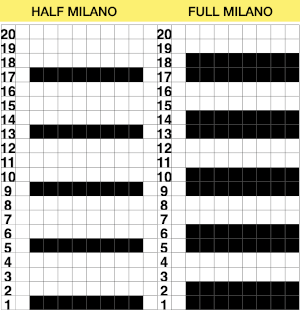
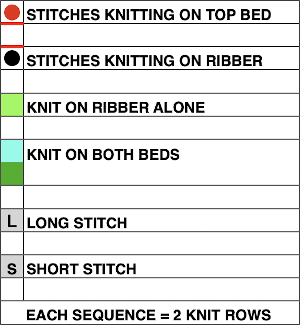
 Half Milano stitch formation on the left, full on the right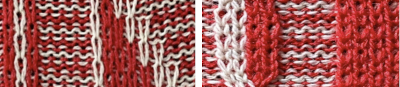
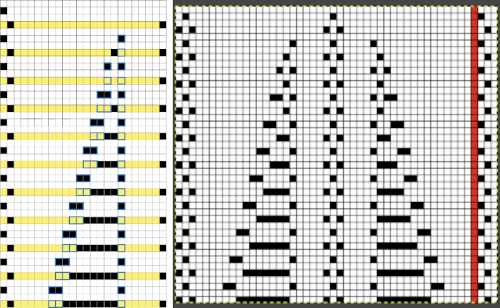

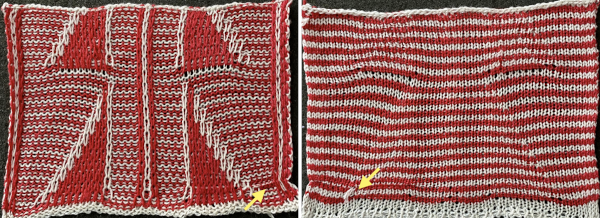
 In executing the fabric as a hand technique, the main bed is still set to slip in both directions, the ribber to knit every row
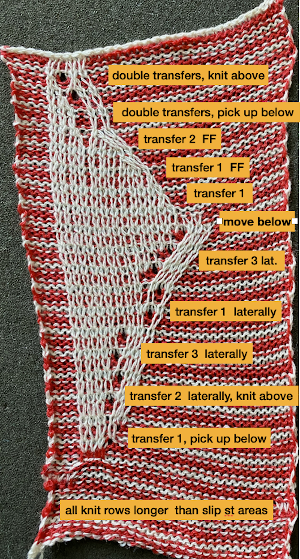 Begin with simple shapes, examining the quality of increases and decreases, whether single or multiple, eyelet formation. Picking up from the row below before the next pass with the contrast color eliminates eyelets
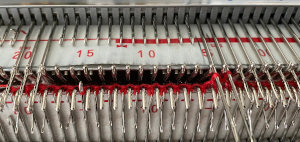 picking up from row below at any point during knitting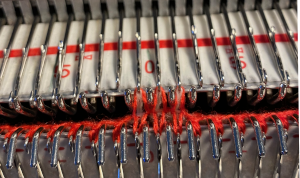
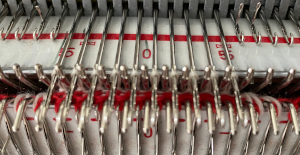 Simple increases or decreases are made by moving stitches laterally in either or both directions. Increases may be made by moving contrast color stitches laterally, followed by the choice as to whether to fill in the empty needle or allow it to create an eyelet.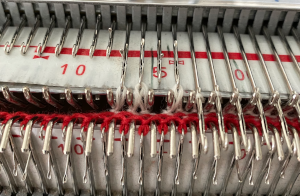
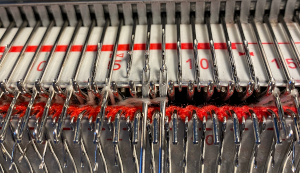
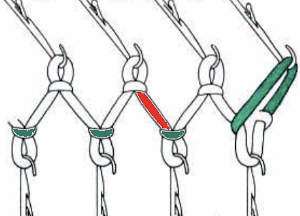
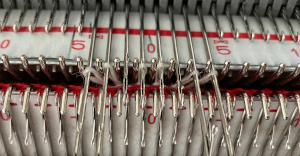 Fully fashioned increases or decreases are made by moving a stitch or a group of them to the adjacent needle/s to the left or the right and then taking the double stitches back to the original position, leaving a single empty needle for the planned eyelet formation. There should not be multiple needles with no stitches on them unless the goal is to expose a stripe of ground
 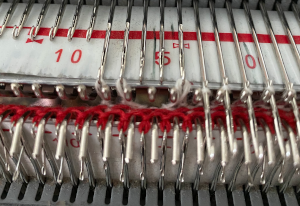 typically, in these exercises, there should be single empty needles after transfers, making certain proper needle selection for the pattern group is maintained
 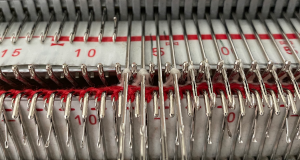 Combining eyelets with lateral increases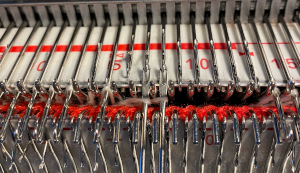

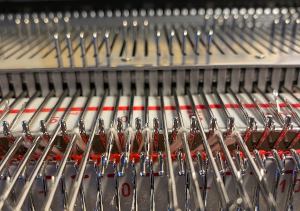 When transferring stitches, watch for any loops getting caught on gate pegs, as seen on the left below, increases and decreases may be pre-formed on more than single stitches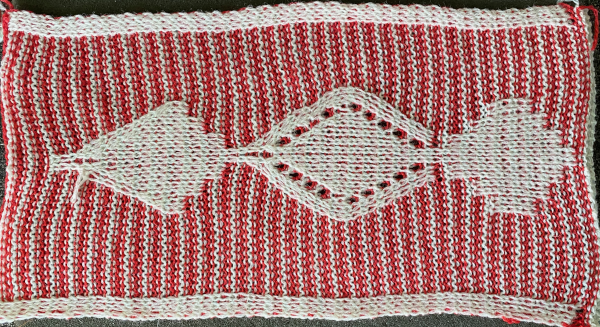
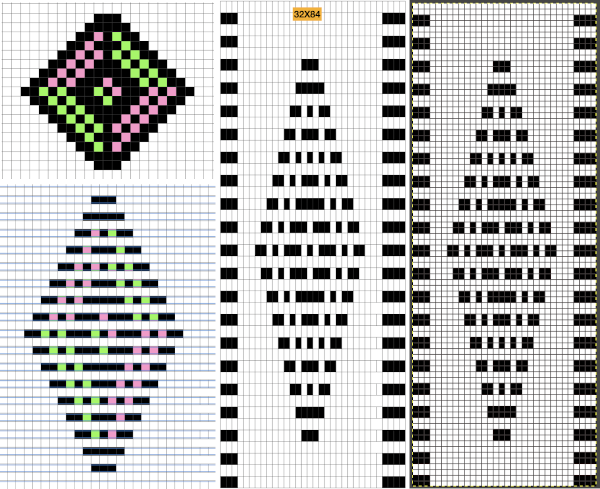
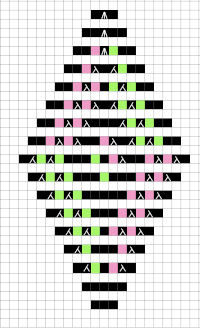
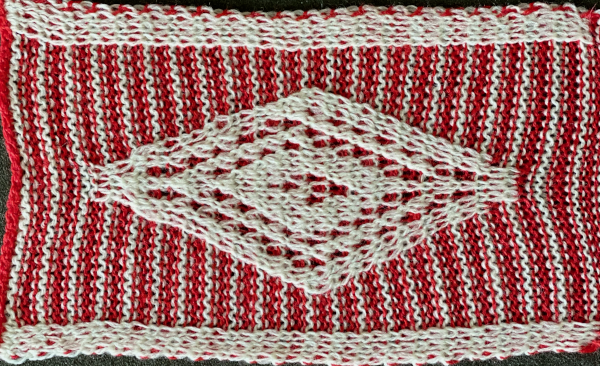 At the top of the single medallion, the stitches were transferred to the ribber prior to knitting with the same color once there was no needle preselection for it on the top bed.
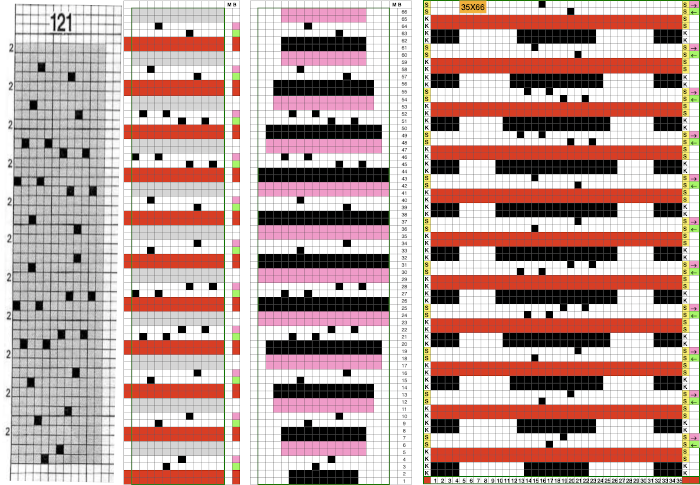 The first preselection row after the chosen cast on is from right to left with end needle selection canceled and the knit carriage already set to slip in both directions, with all required needles on the top bed in the B position.
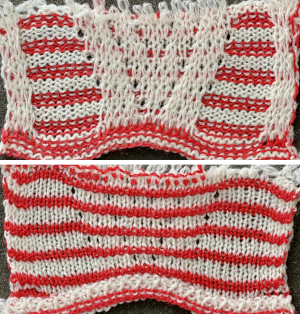 To eliminate the extra white rows, the main bed stays set to slip every row, the ribber settings alternate. It is set to slip for two rows immediately after knitting with the red yarn, then will be reset and knits for 4 consecutive rows. Transfers to create eyelets are made on selected needles on each of those two rows, always toward the carriage, even as the transfers themselves change directions as the angles of the shape decrease toward its center on the top half of the design. After the first transfer and the carriages travel to the right, a long float will be evident, will “disappear” on the return to the left.
  Patterning selection will reappear as the carriages return to the left.
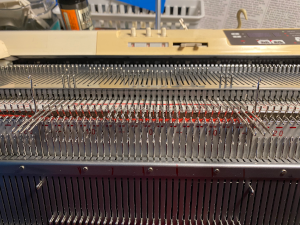
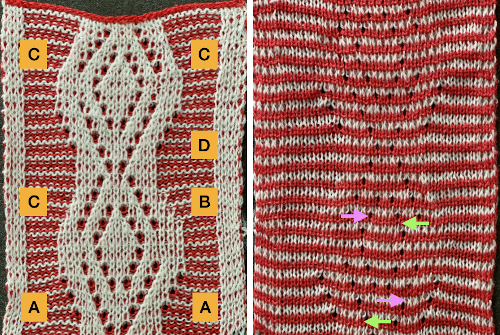 As with single bed lace, the first pass after transfers creates loops on empty needles, which here need to be kept in upper work, D position after transfers. For non Brother knitters, Brother positions are A, B, D, E, skipping C.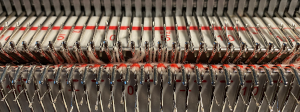
 Knitting over the loops on the next pass on that bed completes the stitch. This design is knit as continuous, the striping at the bottom is wrong because the red was not picked up after the first 2 rows knit in pattern with white, most sequences for the remaining fabric are 4 passes with white in the feeder, followed by 2 in the red. All eyelets here are reduced in size by picking up from the row below, all transfers for decreases are made laterally, the border is set to a width of 4 stitches, the pivot point for the repeat has been narrowed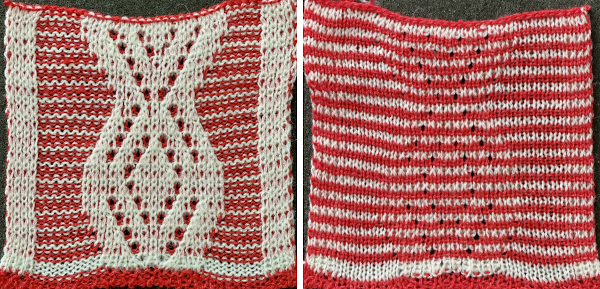
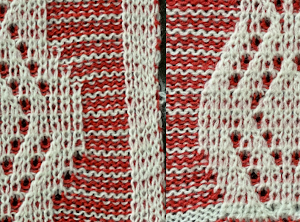
 the differences at the edges of the shapes.
  Many of the same principles may be applied to designs using tuck stitch settings, where the striping will appear vertically rather than horizontally
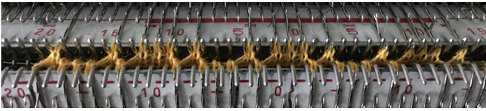
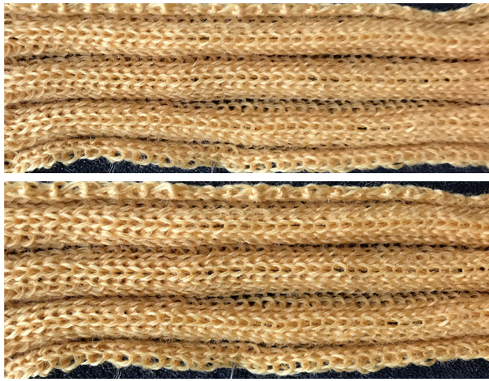
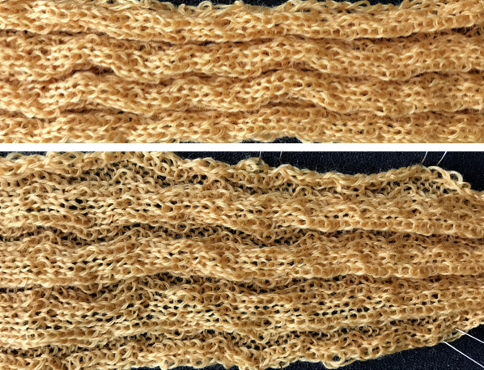 Here the fold is created by 2 stitches tucking for 2 consecutive, then knitting on the same needles for 2 rows on regularly spaced pairs of needles on either bed. Most knitting is on a single bed. A lacey series of eyelets begin to appear, and in some random racking at the top of the swatch, the possibility of developing a secondary pattern due to the combination of racking and tucking begins to show. The middle image is of the fabric slightly stretched. Passap
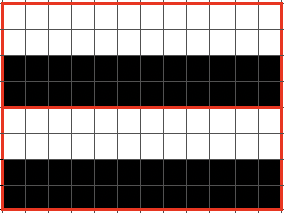
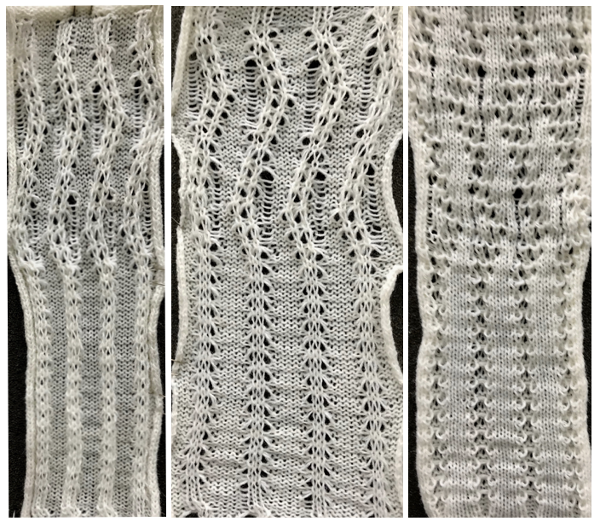 Brother: the ribber can do the stocking stitch background, every needle in work, carriage set to knit. The setup is the same as the Passap diagram. A repeat with 2 black rows of squares followed by 2 white can be programmed on the top bed. On every needle selected rows, pairs of needles will knit, on the white, no selection rows the same pairs of needles will tuck for 2 rows.
  Moving away from vertical ribs becomes significantly easier if one has a G carriage. The alternative option is to create geometric folds that require transferring between beds. Any of these fabrics are best knit in a yarn that has memory and can spring back. Yarns such as acrylic can be permanently flattened by pressing, resulting in loss of texture. A quick experiment: black cells represent knit stitches, blue purl ones
 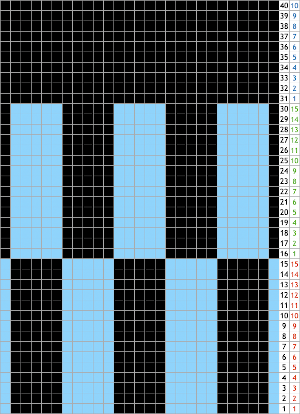 The needle setups: after casting on, transfer for a stitch configuration based in this case, of blocks that are 5 stitches wide. A single needle on the opposite bed is used on each outside edge of all needles in work.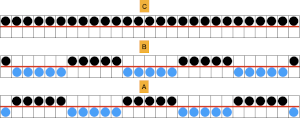
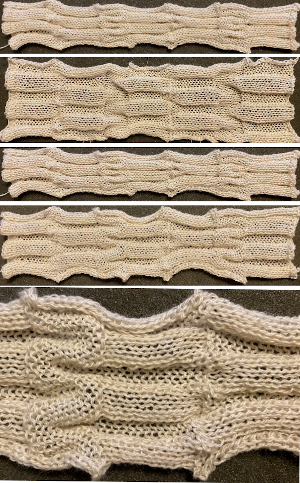 The repeat, 10 stitches by 40 rows.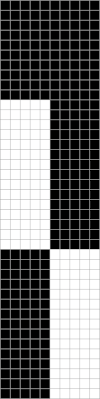
 More on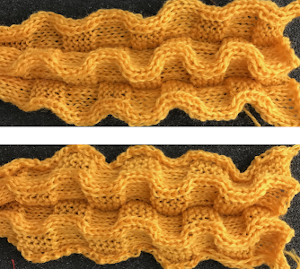
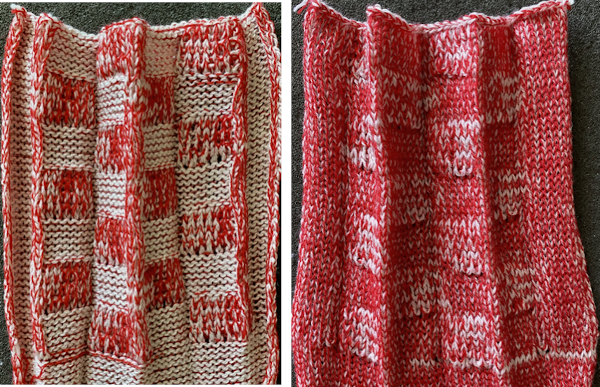 Pleated one color “shadow lace” in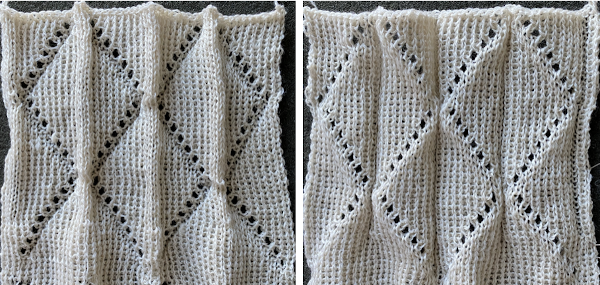
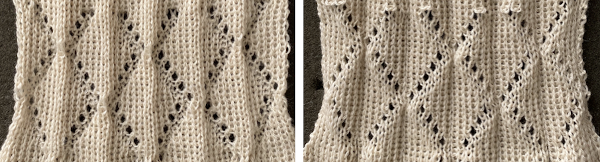
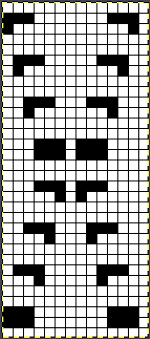 The extra needle selection prior to the next all knit row helps track the direction of the moves, stitches are moved three at a time, there are no cable crossings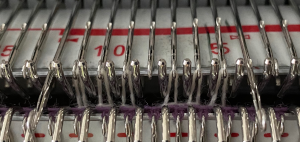
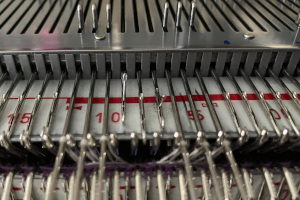
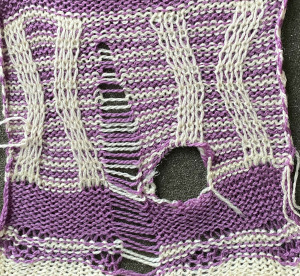
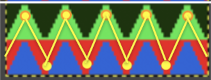
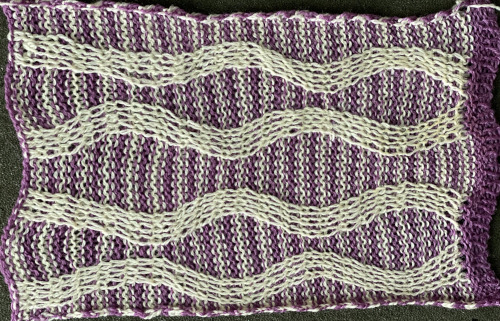 The next step for me was to explore cable crossings on elongated stitches working double-bed. A basic pattern on any programmable machine for playing with elongated stitches on one bed while knitting every stitch on the other is to program pairs of blank rows followed by solid punched or black pixel rows. The yellow line in this chart illustrates the row on which cabling might occur.
 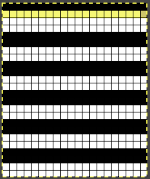 Programming the width of the needle bed allows for only the stitches forming vertical columns in chosen locations to be put into work, allowing one to place groups that will involve crossings anywhere on the chosen pattern width. A base is knit in the ground color, which slips for 2 rows on the main bed, creating the elongated stitches that will be cabled. I had no problem with 2X2 cables,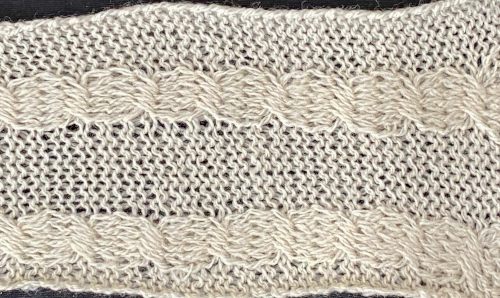
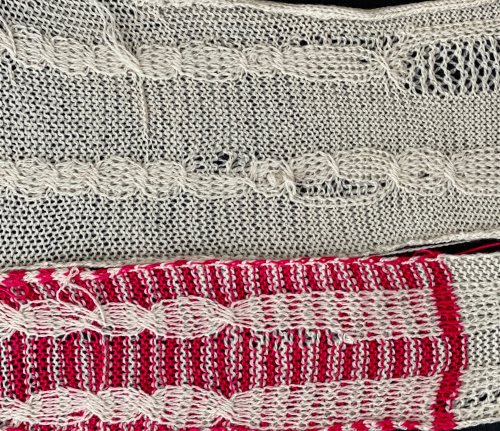 Cabling, returned to in a later post, with adjustments, making things work.
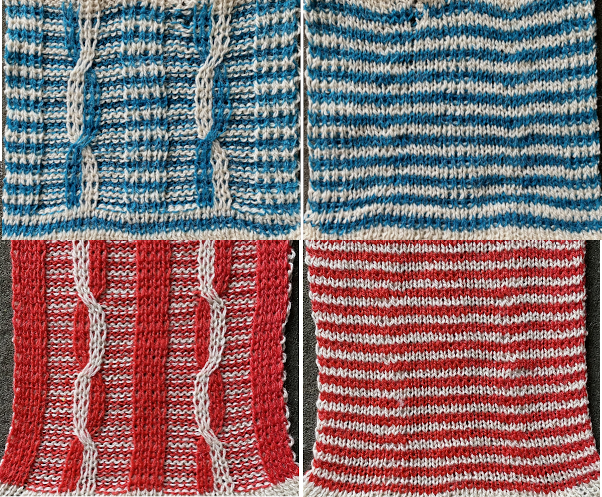 Continuing with shapes on striped grounds, this is the result of a self-drawn pattern
 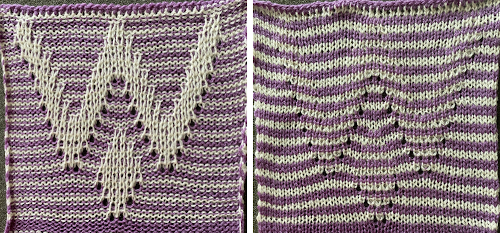 The approach is different than in the blog post on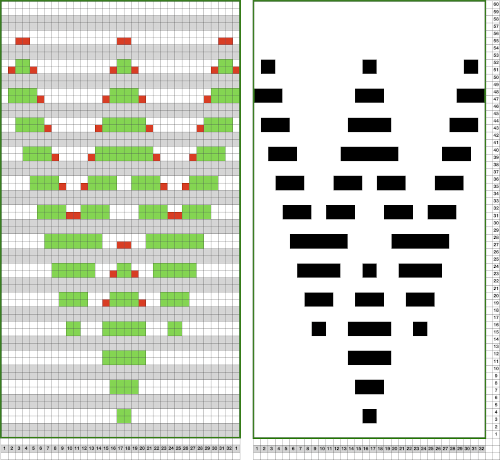
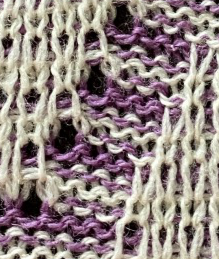

 Punchcards, in theory, may be used as given and set to double length, while for use in electronics drawing the pattern single height and using the double-length setting is also an option. Starting sides and fixing errors have always been more confusing for me when using the double-length feature, I prefer to punch holes or program pixels as I intend to knit them. The isolated reduced repeat for use in the electronic is charted, with an initial one-pixel error in 2 consecutive rows, marked with red cells. In transcribing any design, it is worth checking repeats multiple times after eyeballs and brains have had a rest. This was my start:
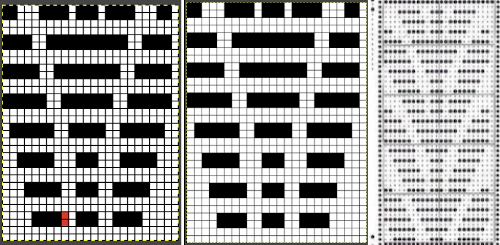 The design process using Numbers before exporting the repeat to Gimp for reduction to B/W png: in this approach, the repeat is drawn double height to start with. The red cells represent stitches that will be transferred down to the ribber before knitting the next row in the pattern color from left to right.
 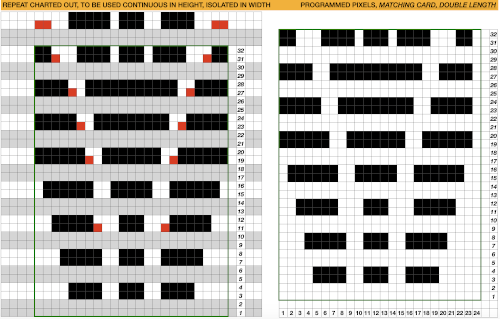 The first test is of an isolated motif. The yellow arrow points to the pixel error, the cyan to the positions where some needles in the full repeat were “accidentally” placed in A position, not B, resulting in pattern stitches not being formed.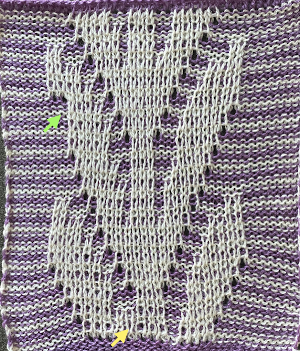

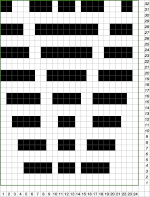

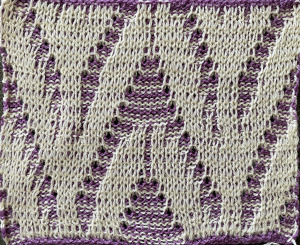 Two other options for charting the fabric in numbers: A. draw the repeat as given
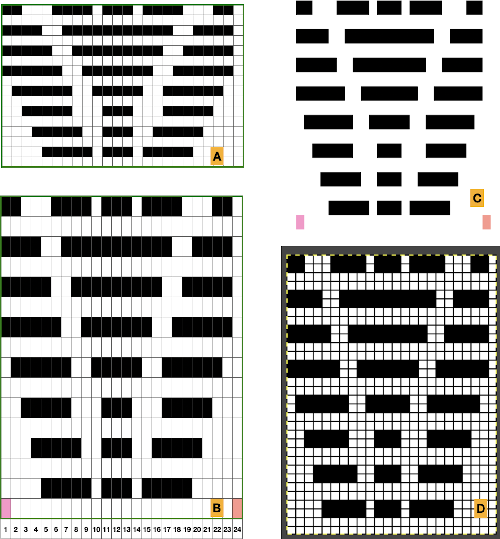 Any simple Fair Isle repeat may also be used. The numbering in the charts matches what is normally seen on the left edge of the tables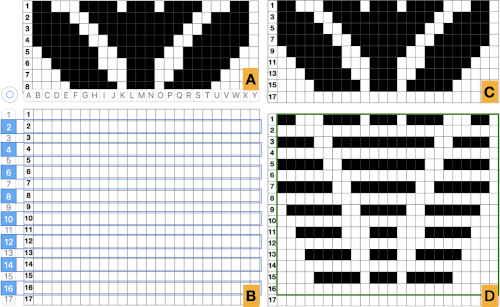
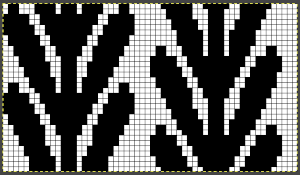

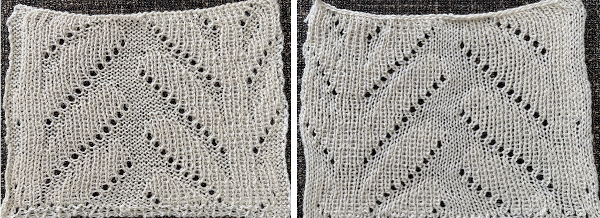
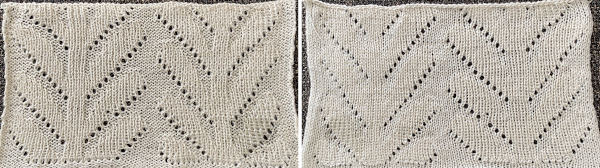 The world of possibilities grows even further for single color shadow lace, when, examining the same design, one recognizes that the pile knit card, with the blank rows filled in in pattern, is the same as the fair isle version of the repeat, rendered double long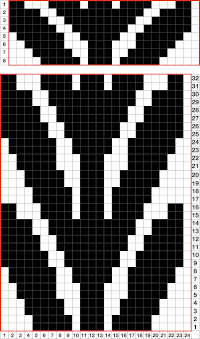
 Some authors have suggested plaiting as an alternative to creating shapes with true brioche, which can be complex. To my mind, plaiting falls in the beauty being in the eye of the beholder category, I prefer far crisper color distinction in my knits. This sample from the previous shadow lace post uses thick and thin yarns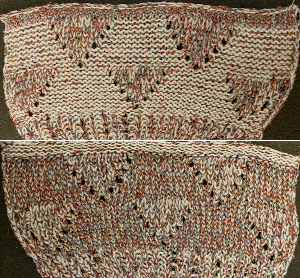
 its accompanying test swatch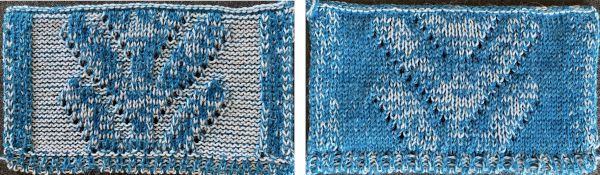
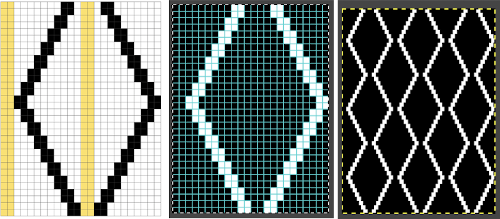

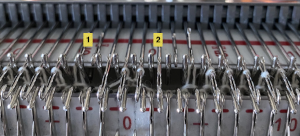
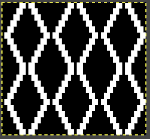

 the file for multiple repeats after color reverse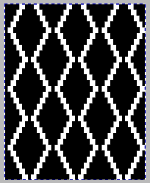

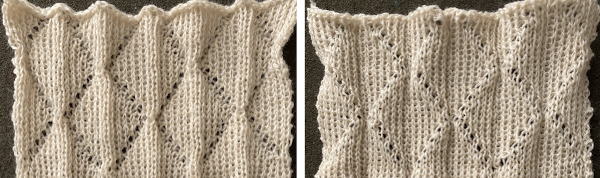
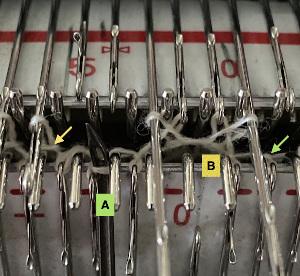
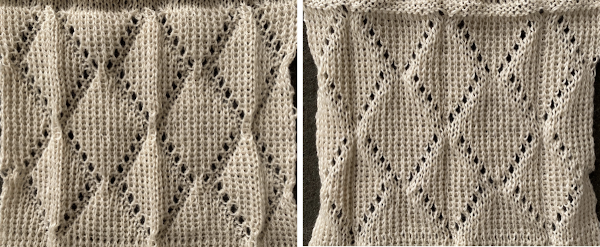
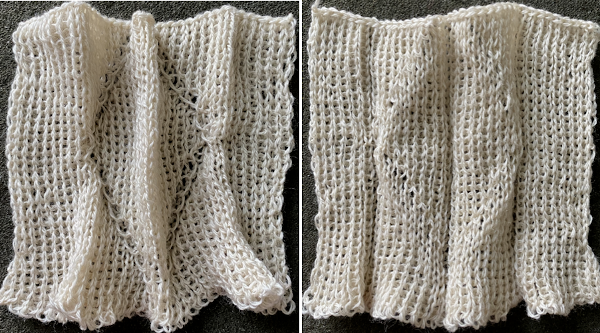 There is an interesting scale and depth of fold comparison between this version and the first using the repeat, achieved by tightening the tension as much as possible, and possibly by reducing the size of the eyelets.
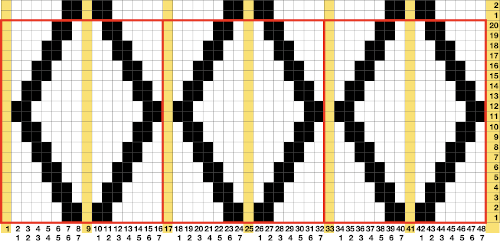
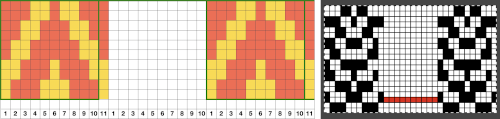 Take care if copying and pasting single columns to alter a repeat width that the whole column is indeed copied and that if using the pencil tool flood fill is not used unintentionally. The original intent was also to correct the elongated slip stitch segments on the edge of the programmed vertical designs marked in blue, but the paste with errors in red accomplished creating the same issue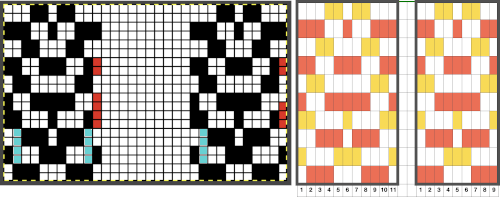

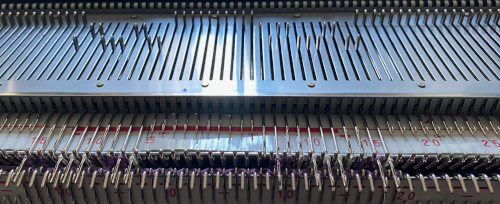 The first segments were knit using striper backing, with the ribber knitting every stitch, every row, in both colors. When a slip stitch is used with needles out of work on the main bed, end needle selection should be canceled. In A it was not. The result is that end needles alongside the out-of-work column knit with each color in each row. In B, end needle selection was canceled, and one can now see the elongated slipped stitches that result from areas that should have been marked with the contrasting color
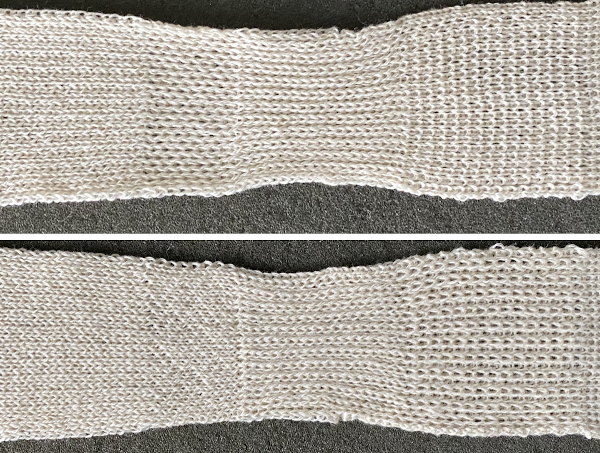
 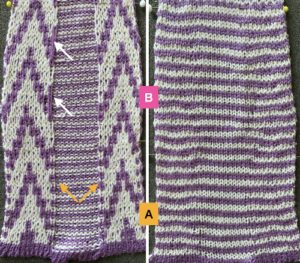 As long as the number of stitches on the ribber is even, lili buttons may be used, affecting the scale of the pattern in both height and width. In A, they were used with the ribber set to slip in both directions, in B, set to tuck in both directions. C marks the return to the N/N setting, with needle transfers to mark a possible pleat.
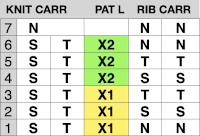
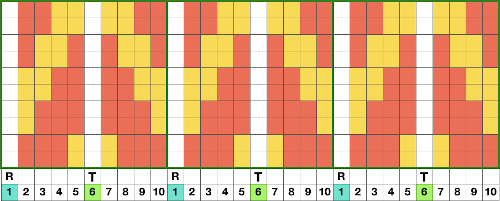
 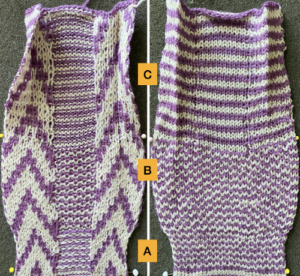 The initial pleat idea charted out for single stitch folds, stitches transferred to ribber in the R columns, to the top bed in the T columns
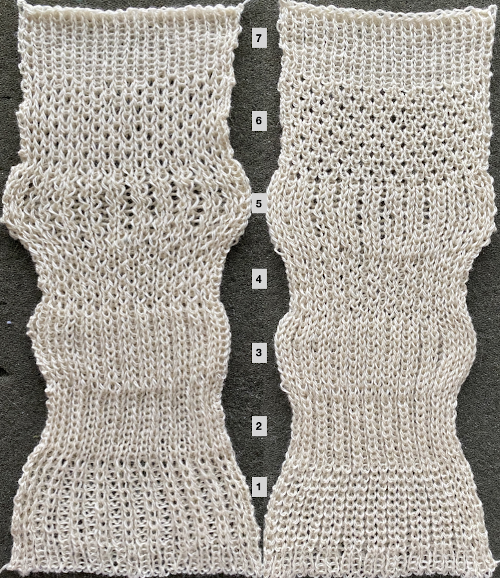
  The result is a fairly soft pleat, the choice below was to retain end needle selection.
 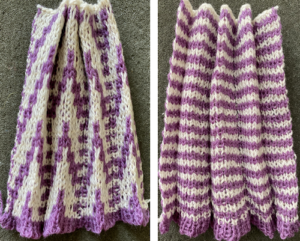 Various ribbed pleat configurations are explored in
  Paired transfers in the planning stages: because the repeat is small and has a single center pivot point, it is rendered once more, adding columns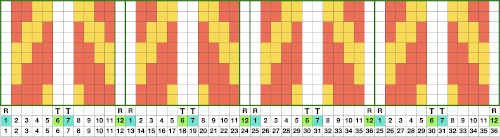
 Here the transfers planned to opposite beds are marked on a 48 stitch repeat with red cells.
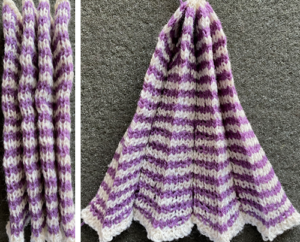
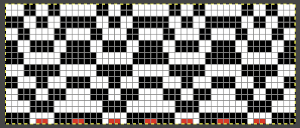 The resulting fabric relaxed on the left, lightly steamed on the right
  Note: the color positions in the design have been reversed from those in the first swatch. If “floats” are noted at any time in the spaces where needles are out of work on the ribber, look for dropped stitches.
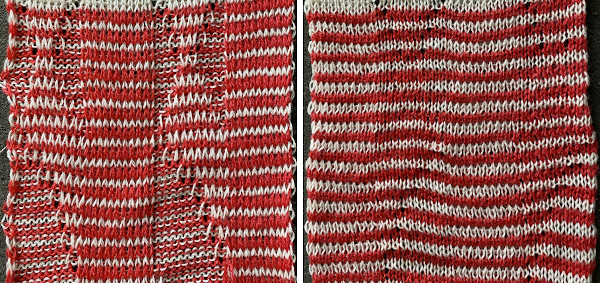 Needles in locations where only the backing is to be shown are transferred down to the ribber. Leaving the eyelets, they were transferred back up to the main bed when brought into work to reverse or change the shape. Addition and subtraction of stitches take place before the next pass with the alternate color. Here movement is random, to get some sense of the effect, it could be made deliberate by following a chart or color separating and automating the pattern, with its starting side on the right.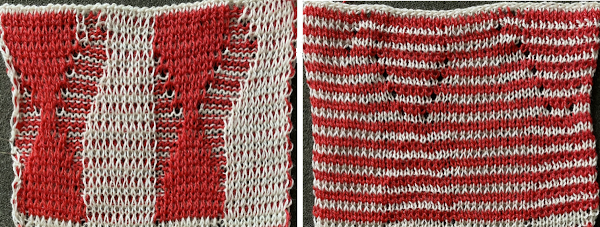
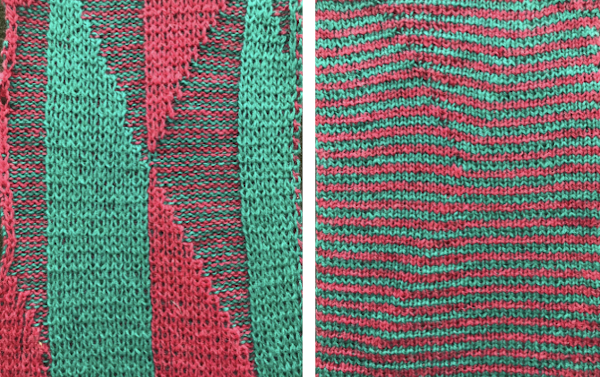 What of having shapes appearing in each of the 2 colors on a striped ground? Eliminating some of the guesswork I used the repeat from a previous single-bed blog post on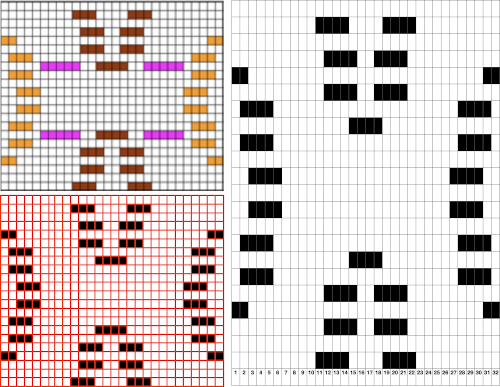

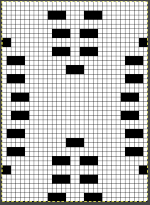 The resulting sample, the yarn is thin, might have benefited from tighter tension and more contrast.